Multitenancy
In modern organizations, protecting departmental data is critical to maintaining privacy, efficiency, and compliance. Multi-tenant access control ensures that users can only share and access files within their own departments. This approach eliminates risks of unauthorized access, reduces data mishandling, and supports seamless intra-department collaboration.
The application supports department-level data isolation by enabling organizations to create departments and restrict data sharing and access to users within the same group. This document outlines how to implement and benefit from department-level access control using the application.
Steps to Create a Department
-
Access the Department Section
-
Click on the
 (hamburger menu) icon in the top-left corner of the screen.
 -
Navigate to Administration.
-
Under the Administration section, click on Department.
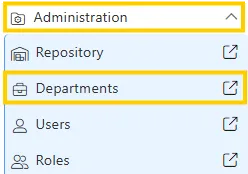
This will take you to the Department Page, where existing departments are displayed in a list view.
-
-
Open the Create Department Form
-
In the bottom toolbar, click on the
 button.
 -
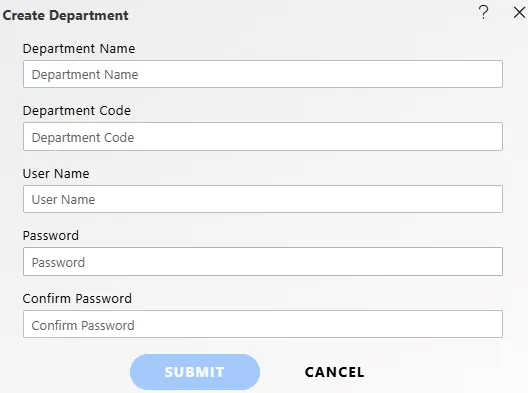
This opens a form where you can input details for the new department.
-
-
Fill Out the Department Information
In the create form, enter the required details:
-
Department Name: Enter the name of the department (e.g., Product Development).
-
Department Code: Provide a unique code for the department (e.g., PD03).
-
User Name: Assign a department admin or manager (e.g., alex_morgan).
-
Password: Set a password for the user.
-
Confirm Password: Re-enter the password to confirm it.
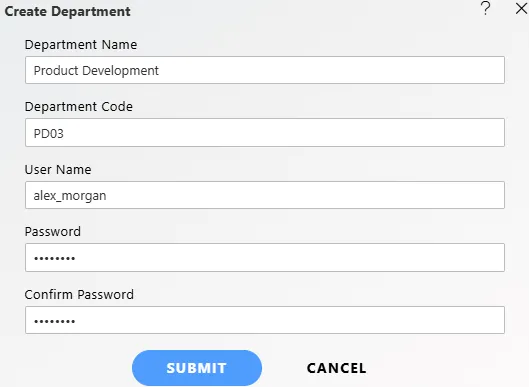
After entering the information, click the SUBMIT button to create the new department.
-
-
Verify the New Entry
-
The newly created department will now be listed in the list view on the Department Page.
-
Use the Search bar in the top-right corner to locate and verify the entry.

-
-
Login with Department Credentials
Once the department is created, you can log in using the username and password in the following format:
-
Username: PD03/alex_morgan
-
Password: Enter the password you set during department creation.
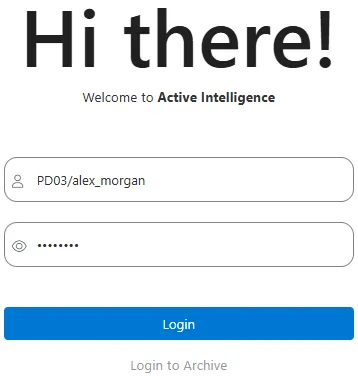
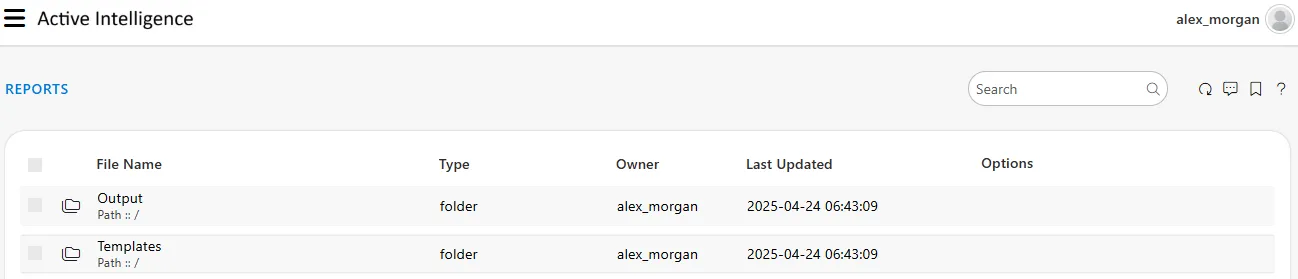
After logging in, you will be directed to the alex_morgan reports page, where department-specific folders like Output and Templates are displayed.
-
Steps to Create a User
-
Access the Users Section
-
Click on the
(hamburger menu) icon in the top-left corner of the screen. -
Navigate to Administration.
-
Under the Administration section, click on Users.
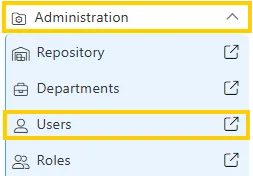
This will take you to the User Page, where existing users are displayed in a list view.
-
-
Open the Create User Form
-
In the bottom toolbar, click on the
 button.
 -
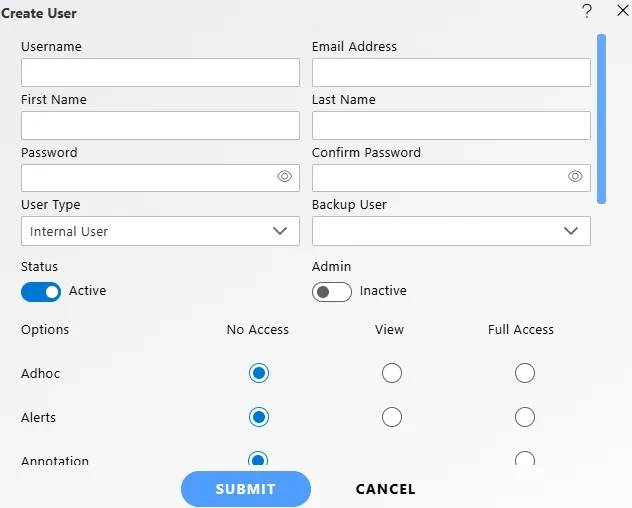
This opens a form where you can input details for the new user.
-
-
Fill Out the User Information
In the Create User form, enter the required details:
-
Username: Enter the desired username (e.g., jordan_lee).
-
Email Address: Enter the user’s email address (e.g.,
jordan@gmail.com). -
First Name: Enter the user’s first name (e.g., Jordan).
-
Last Name: Enter the user’s last name (e.g., Lee)
-
Password: Set a password for the user.
-
Confirm Password: Re-enter the password to confirm it.
-
User Type: Select the appropriate user type from the dropdown.
-
Internal User: Typically a member of your organization who requires full or regular access to the system.
-
External User: Often a third-party user such as a vendor, client, or consultant who may need limited or restricted access.
-
-
Backup User: Select a backup user if required (e.g., alex_morgan).
-
Status: Set the user’s status using the toggle switch (e.g., Active).
-
Admin: Set whether the user has admin privileges using the toggle switch (e.g., Inactive).
-
Options: For Adhoc, Alerts, Annotation, etc., select the desired access level by clicking the appropriate radio button.
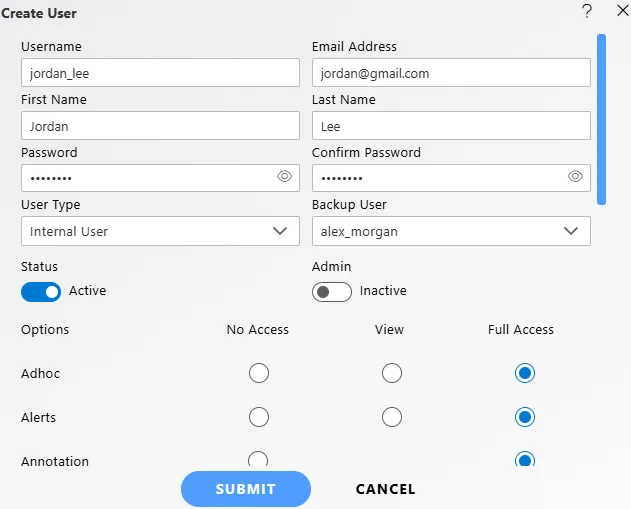
After entering the information, click the SUBMIT button to create the new user.
-
Verify the New Entry
-
After clicking the SUBMIT button, a pop-up message saying User Created Successfully will appear, confirming that the user has been added.
-
The newly created user will now be listed in the list view on the User Page.
-
Use the Search bar in the top-right corner to locate and verify the entry.

-
Sharing Data within Department
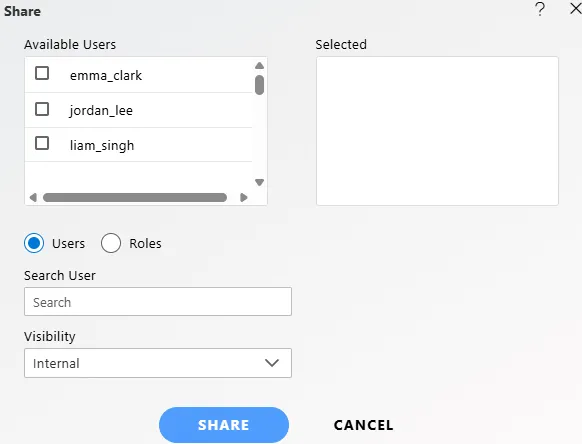
When sharing data (such as dashboards, reports, or files), you will only see users that belong to the same department. For example:
-
If you are sharing a dashboard, the Share option will only show the users you have created within the same department.
-
This ensures that you can securely share files or data within your team, without exposing it to other departments or unauthorized users.