Chart Category Grouping and Sorting
Overview
This document provides information about a feature called Chart Grouping and Sorting. In AIV, Grouping and Sorting is applied to the Category Axis. Grouping can be done in two types: String and Date Time. Additionally, sorting by column is possible in either Ascending or Descending order. In this scenario, we are using the Clustered Column Chart widget and implementing Grouping and Sorting on the Category Axis.
Chart Category Grouping and Sorting: This video explains how to use Chart Category Grouping and Sorting.
This example demonstrates how to create Grouping in two types: String and Date Time, and sort the column in Ascending order. Follow the steps below:
-
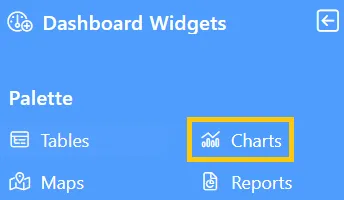
Click the Charts icon from the left vertical menu, as shown below:
-
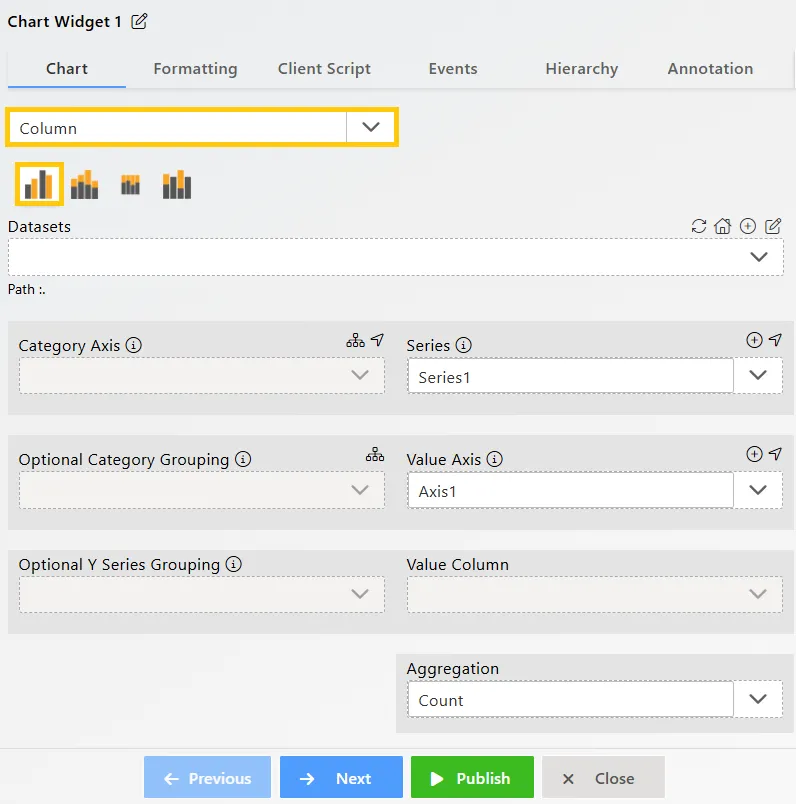
The Chart Edit menu box will appear, and by default, the Clustered Column chart will be selected.
-
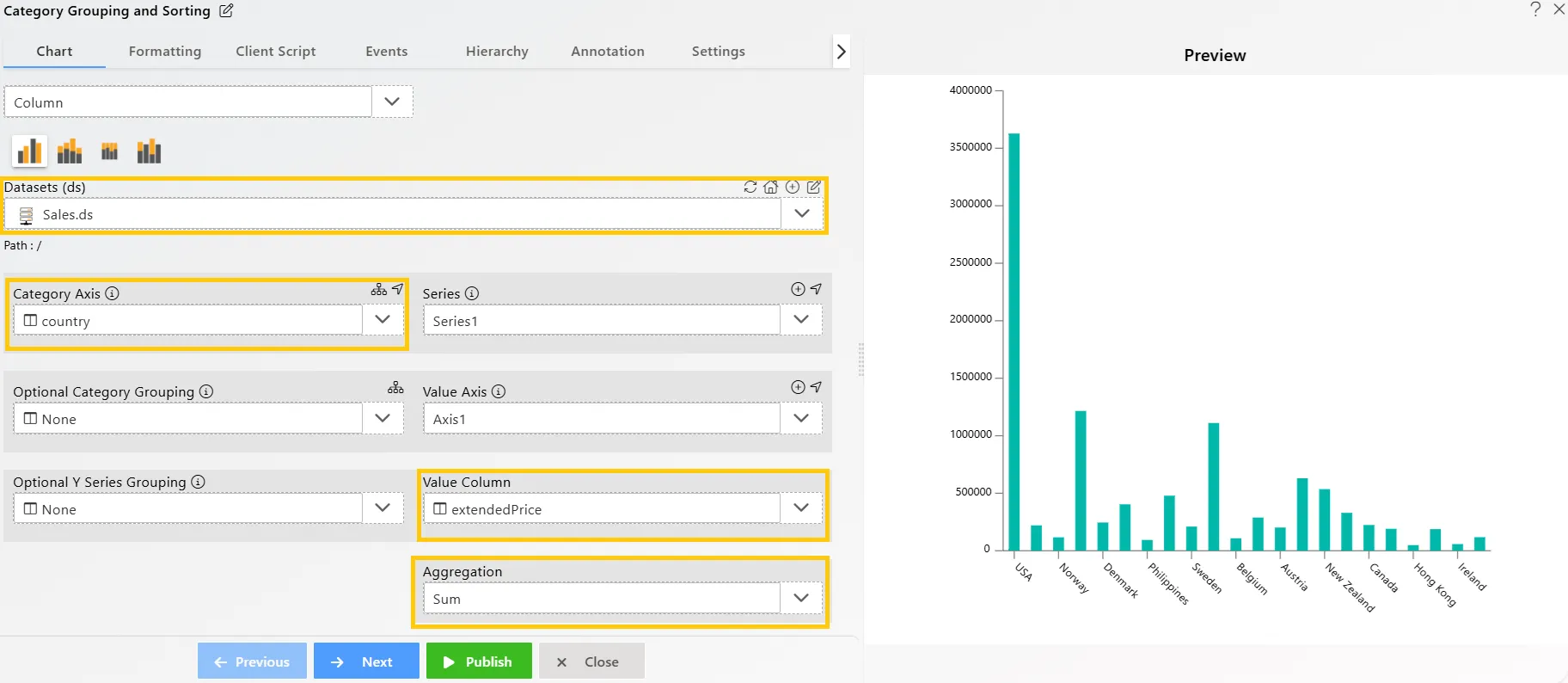
Enter the following details in the Clustered Column Chart Widget:
-
Datasets (ds): Sales.ds
-
Category Axis: country
-
Value Column: extendedPrice
-
Aggregation: Sum
-
-
Click on the
 icon beside the Category Axis.
 -
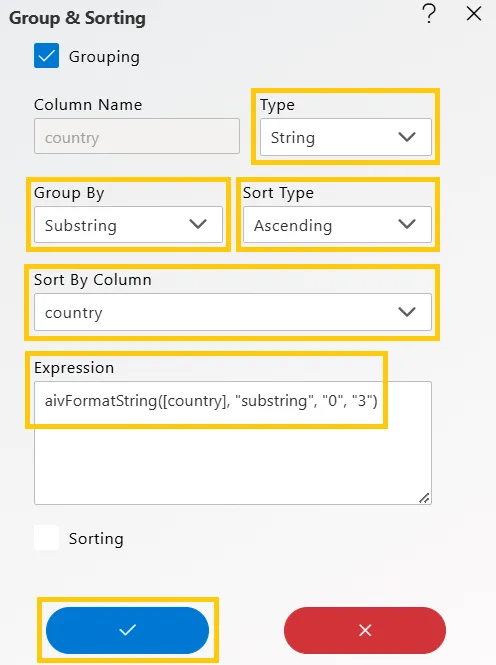
In Grouping & Sorting, click on the checkbox for Grouping.
-
Enter the following details in Grouping:
-
Type: String
-
Group By: Substring (There are a number of grouping option available; the user can choose any option as per their requirement).
-
Sort Type: Ascending
-
Sort By Column: country
-
The Expression will be added automatically, as shown below:
-
-
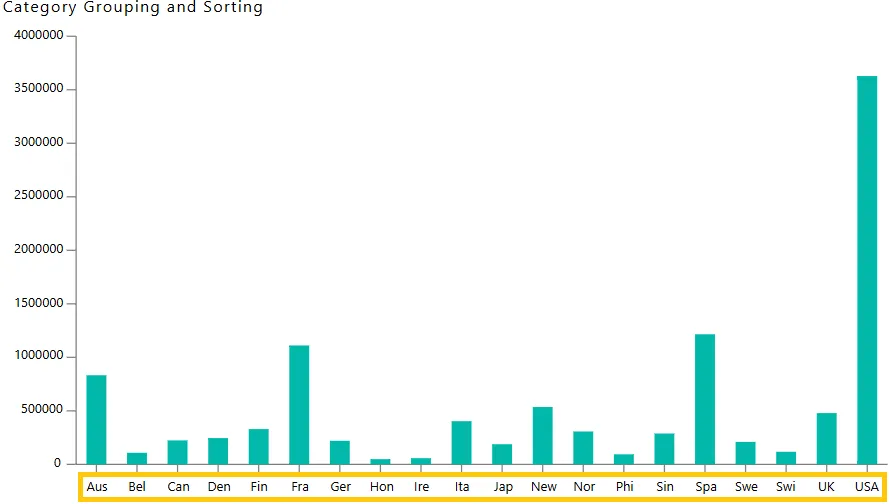
Click on the Publish button, then the Preview icon, and finally click on the SAVE AND EXIT button. The Clustered Column Chart will display the first three letters of the country name, as we grouped by substring, and the columns will be in ascending order, as shown below:
-
For Grouping by Date, edit the widget by clicking the
 icon in the top-right corner and enter the following details in the Clustered Column Chart.
-
Datasets (ds): Sales.ds
-
Category Axis: OrderDate
-
Value Column: orderNumber
-
Aggregation: Sum

-
-
Click on the
icon next to the Category Aixs, then select Grouping. -
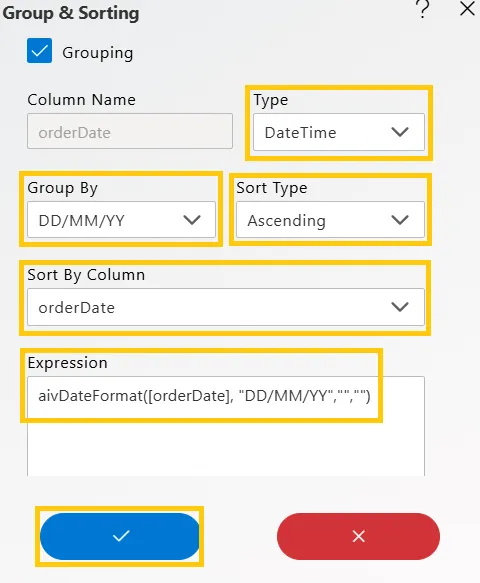
Enter the following details in the Grouping.
-
Type: DateTime
-
Group By: DD/MM/YY (There are a number of grouping option available; the user can choose any option as per their requirement).
-
Sort Type: Ascending
-
Sort By Column: orderDate
-
The Expression will be added automatically, as shown below:
-
-
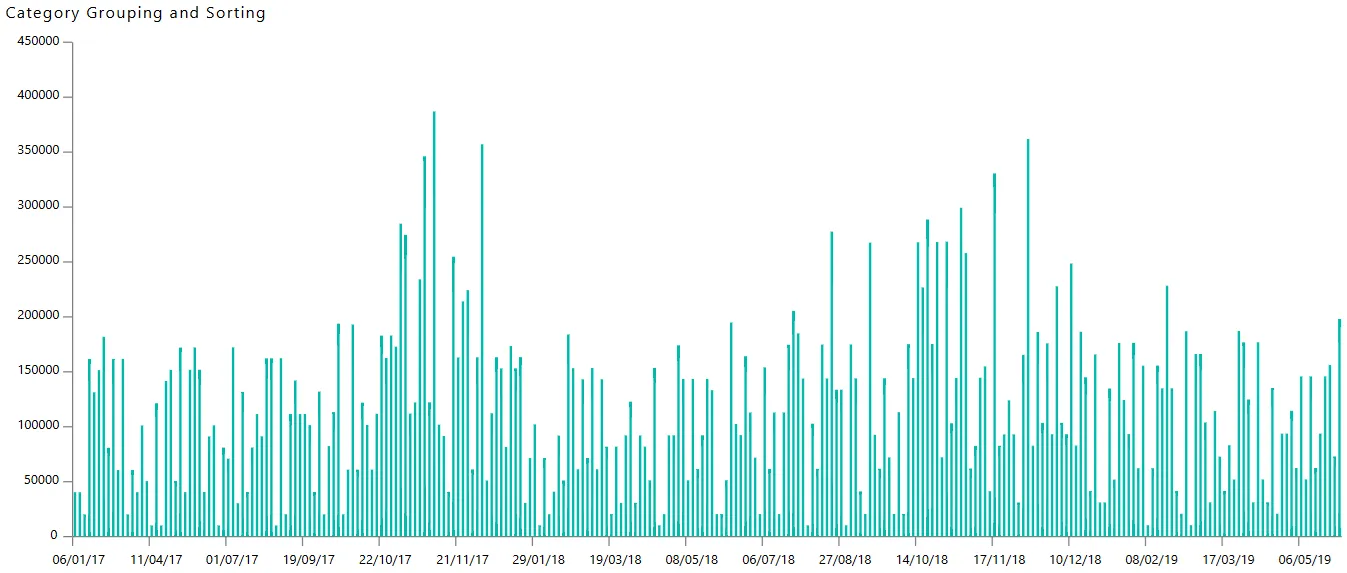
Click on the Publish button, then the Preview icon, and finally click on the SAVE AND EXIT button. The Clustered Column Chart will display the date in DD/MM/YY format, and the columns will appear in ascending order, as shown below:
-
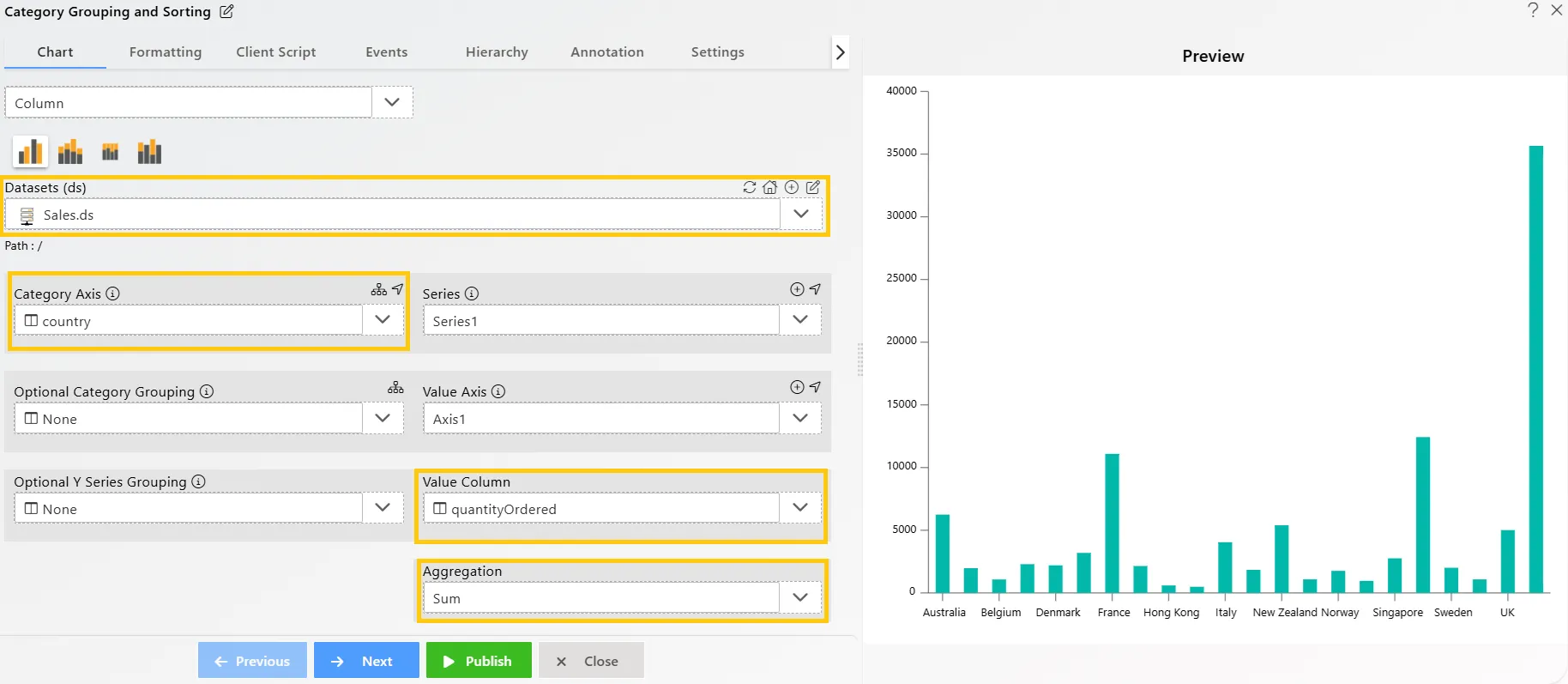
To perform Sorting by Country, enter the following details in the Clustered Column Chart:
-
Datasets (ds) : Sales.ds
-
Category Axis: country
-
Value Column: quantityOrdered
-
Aggregation: Sum
-
-
Click on the
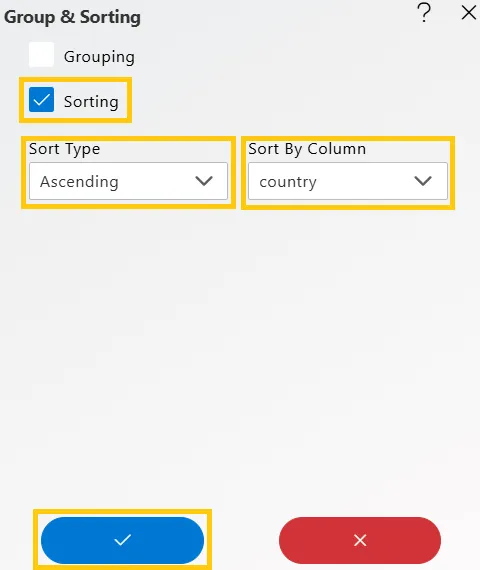
icon beside the Category Axis.Uncheck the Grouping option if it’s selected. In Grouping & Sorting, check the box for Sorting and enter the following details:-
Sort Type: Ascending
-
Sort By Column: country
-
-
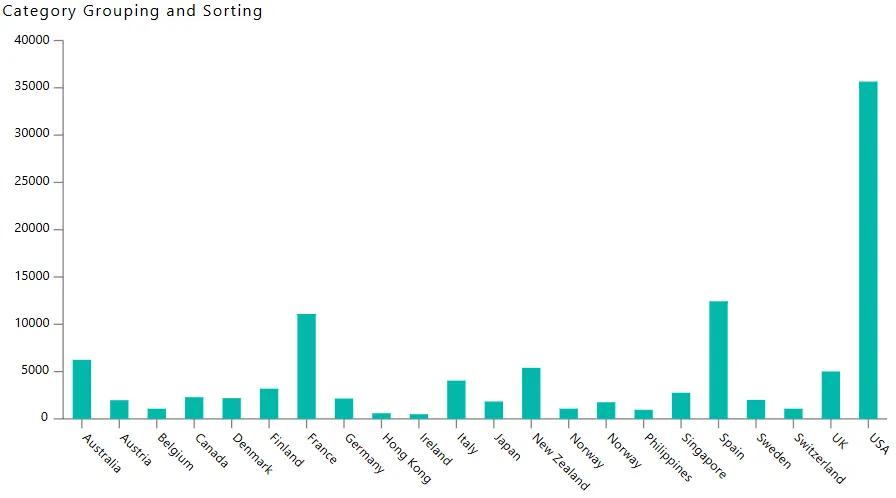
Click on the Publish button, then the Preview icon, and finally click on the SAVE AND EXIT button. The Clustered Column Chart will display the country name in ascending order, as shown below:
In this way, you can create charts with Category Grouping and Sorting in the AIV application.