Email Tab
The Email tab is used to configure email notifications and delivery options for scheduled reports. It allows users to automatically send the generated report to selected recipients upon successful execution.
This document explains how to configure the Email tab as part of the report scheduling process.
Objective
To understand how to set up automatic email notifications and delivery options for scheduled reports.
Prerequisites
-
For this example, the report used is Order details.rptdesign.
-
Download the required sample files from the link email.zip
-
Upload Order details.rptdesign to the Report Section under the Root folder.
-
Refer to this link for detailed steps on uploading files in the application.
Steps to Configure the Email Tab
-
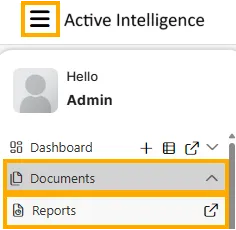
From the Hamburger menu, navigate to Documents → Reports.
-
Open the desired report (for example, Order Details). When you open the report, the first screen displayed will be the Parameter Tab.
-
After entering the required parameters, navigate sequentially through the following tabs:
-
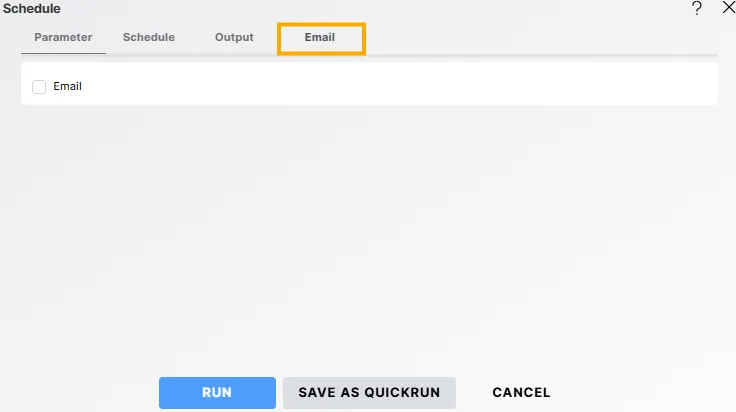
Open the Email Tab to configure email notifications and delivery options.
-
Initially, only the Email checkbox will be visible. Enable the checkbox to reveal the full set of configuration options.
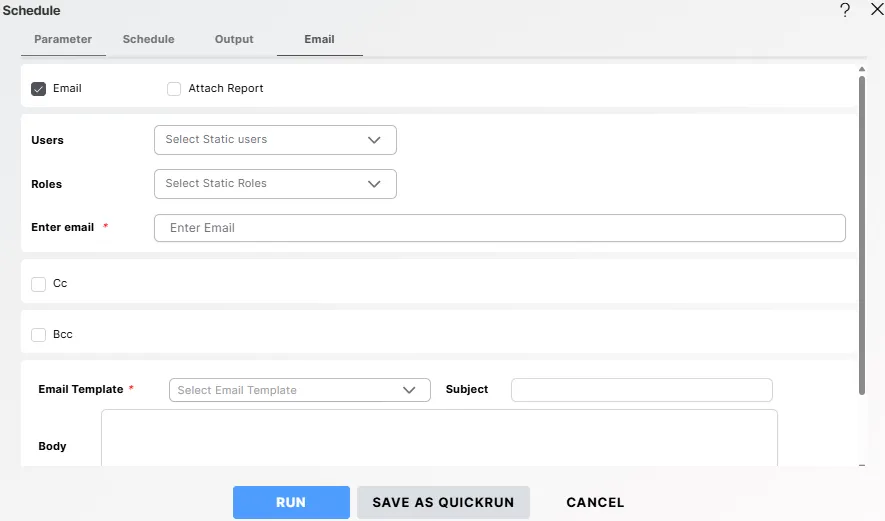
Available Options (after enabling Email):
| Field | Description |
|---|---|
| Attach Report | Enable this option to attach the generated report to the email. |
| Users / Roles | Select specific users or roles from the dropdown who should receive the report. |
| Enter email* | Specify one or more recipient email addresses separated by commas. This field is mandatory. |
| Cc / Bcc | Optionally enter email addresses to send a copy (Cc) or blind copy (Bcc) of the report. |
| Email Template* | Choose the email template used for sending the report. Available Options: • None – No template is applied. • Default – Uses the system’s default email layout. • Success – Uses a success message template for completed reports. |
| Subject | Specify the subject line for the email notification. |
| Body | Add a custom message or instructions to include in the email body. |
| On Failure Retry | Define how many times the system should retry sending the email in case of failure (e.g., First, Second, Third, Fourth). |
| After Minutes | Specify the interval (in minutes) between retries (e.g., 5 mins, 10 mins, 15 mins, 30 mins, 60 mins). |