Schedule Reports by Time - Once
The Schedule Reports by Time – Once feature allows you to execute a report at a specific future date and time only once.
This document explains how to configure and execute reports using the Once scheduling option.
Once : This video explains Schedule Reports by Time - Once within the application.
Objective
To schedule and execute a report once at a predefined future time using the Once scheduling option.
Prerequisites
-
For this example, the report used is Order details.rptdesign.
-
Download the required sample files from the link report.zip
-
Upload Order details.rptdesign to the Report Section under the Root folder.
-
Refer to this link for detailed steps on uploading files in the application.
Steps to Schedule a Report using the Once Option
-
We will be using Order details Report in this example.
-
There are two ways to open a report for scheduling:
I. By clicking on the desired output format option (for example: rptdocument, XLSX, DOCX, PDF, etc.) as shown in the image below.

These icons allow you to directly schedule the report in the selected format.
II. Double-click the desired report name to open it for scheduling.
-
After opening the Order Details Report, the Parameter Tab will open by default.
-
Parameter Tab
- Use the Parameter Tab to provide the required input values for generating the report.
- Parameters marked with an asterisk (*) are mandatory.
- After entering all parameters, click on the Schedule Tab.
-
Schedule Tab
In the Schedule Tab, you define when the report should execute.
Steps to Configure the Schedule Tab:
I. Schedule Type – Select Time from the dropdown list to schedule the report based on a time condition.
II. Frequency – Choose Once from the available options (Right Now, Once, Recurring).
- This option allows you to define an exact date and time for one-time report execution.
- After the report executes, it will not run again unless re-scheduled manually.
III. Start Time* – Select the date and time at which the report should execute.
- The system displays a confirmation message indicating when the execution will start.
- The timezone (for example: Asia/Calcutta) is automatically displayed below the field.
IV. On Failure Retry – Define the retry mechanism if the report fails to execute.
- Retry Count – Number of times the system should retry in case of failure (e.g., 1, 2, or 3 times).
- Schedule After Every – Time interval between retries (e.g., 5 mins, 10 mins, etc.).
- This ensures automatic retrying in case of temporary system or network errors.
V. Output Owner – Displays or allows you to select the user who will own the generated report (for example: Admin).
-
The report will appear under this user’s scheduled outputs in the system.
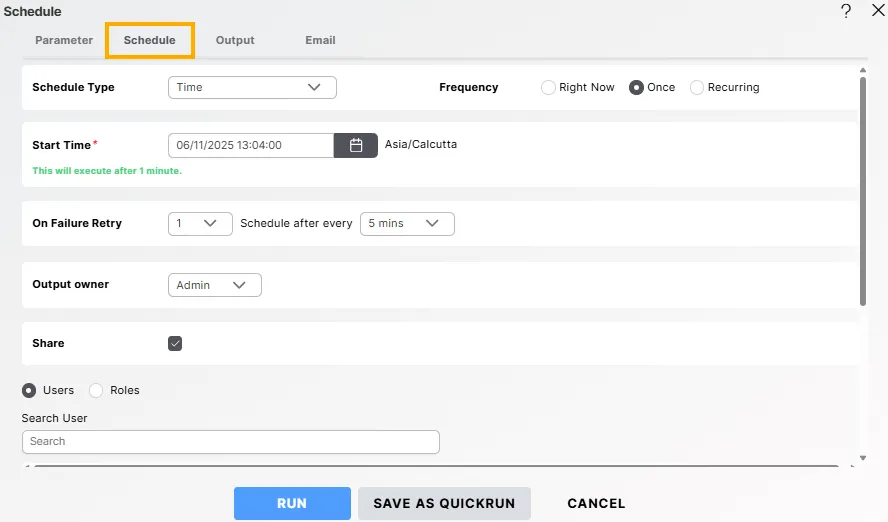
VI. Share – Enable this checkbox if you want to share the scheduled report with other users or roles.
Once checked, additional configuration options appear as shown below.-
Users / Roles – Select whether you want to share the report with specific Users or Roles.
-
Search User – Use this field to quickly find a specific user by name.
-
Visibility – Set the visibility level for the scheduled report:
- Private – The report remains hidden from recipients, even if the containing folder is shared.
- Internal – The report is visible only to internal user of the organisation.
- Public – The report is visible to all users without restrictions.
-
Available Users – Displays all users in the system.
- You can select one or more users by checking the boxes beside their names.
-
Available Roles – Displays all roles in the system.
- You can select one or more roles by checking the boxes beside their names.
-
Selected – Displays the list of users or roles who will have access to this scheduled report.
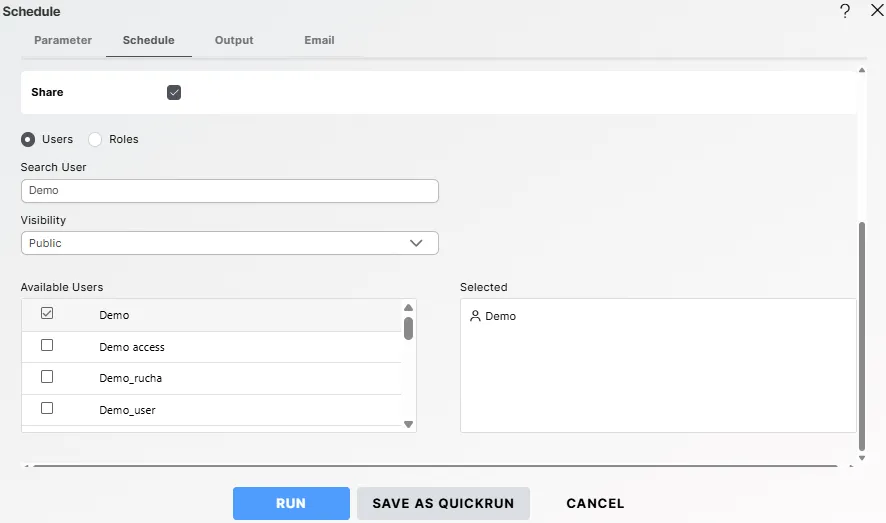
After configuring all the above options, click on the Output Tab.
-
Output Tab
- Use the Output Tab to define the report’s output format, file name, and storage location.
- For example, you can generate the report in PDF, XLSX, or DOCX format.
After defining output settings, click on the Email Tab if you want to send the report via email after execution.
-
Email Tab
- Use the Email Tab to configure recipients, email subject, and attachments for the automatic delivery of the generated report.
-
Final Execution
After configuring all the required tabs (Parameter, Schedule, Output, and Email), you are ready to execute or save the scheduled report.
At the bottom of the scheduling window, the following buttons are available:
Button Description RUN Executes the report as per your configured schedule (at the specified date and time). SAVE AS QUICKRUN Saves your current configuration for quick future runs without re-entering parameters. CANCEL Cancels the scheduling process and closes the window without saving. 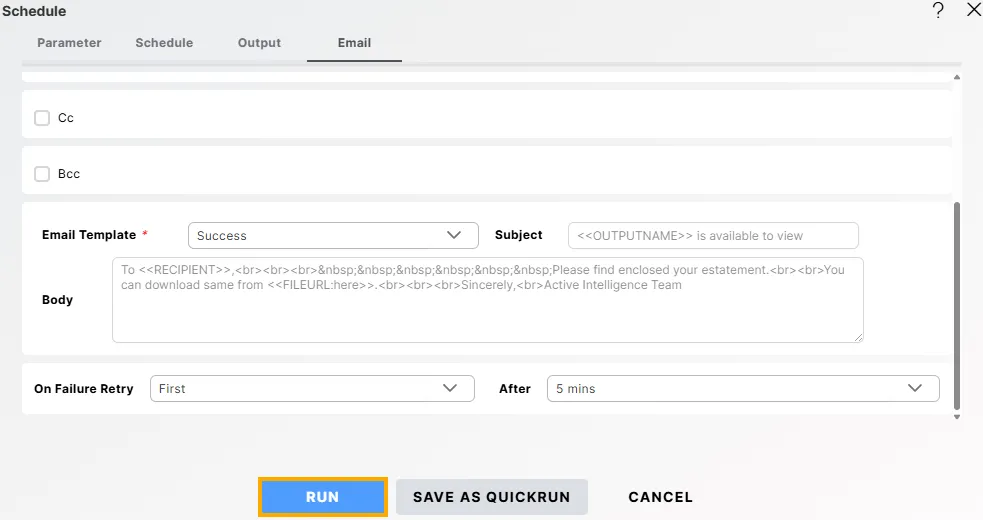
- When you click RUN, the report will be queued and executed at the Start Time you selected earlier.
- Once the report runs, you can check the execution status in the Request section of the application.
-
Monitor Execution Status
- The Request section shows all reports that are Completed, Running, Failed, or Scheduled.
- You can view detailed status, progress, and logs.
- If the report fails, the error message or reason for failure will be displayed for troubleshooting.