Output Tab
The Output Tab allows users to define how and where a report output should be generated and stored.
You can specify the file name, output format, storage path, and automation options such as webhook or event triggers.
This document explains how to configure the Output Tab while scheduling a report in the application.
Objective
To understand how to configure the output format, storage location, and additional delivery options for a scheduled report.
Prerequisites
-
For this example, the report used is Order details.rptdesign.
-
Download the required sample files from the link output.zip
-
Upload Order details.rptdesign to the Report Section under the Root folder.
-
Refer to this link for detailed steps on uploading files in the application.
Steps to Configure the Output Tab
-
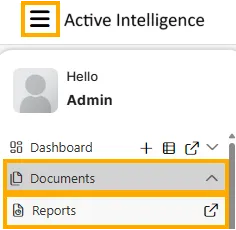
From the Hamburger menu, navigate to Documents → Reports.
-
Open the desired report (for example, Order Details). When you open the report, the first screen displayed will be the Parameter Tab.
-
After entering the required parameters, navigate to the Schedule Tab to define when and how the report should execute.
-
Once scheduling is configured, open the Output Tab to set up how the report output will be generated and stored.

-
Configure the following fields as per your requirements:
Field Description Name The name of the output file. By default, it displays the report name (e.g., Order Details). Suffix Allows you to add a suffix to the output file name for easier identification. Format Select the desired output format from the dropdown list.
Available formats:
•rptdocument
•aiv-xlsx
•docx
•html
•pdf
•pptx
•xls
•xls_spudsoft
•xlsxPath Specify the folder path where the generated report will be saved. You can browse or manually enter the output location (e.g., /Output/Temp/). Webhook Enable this option to send the output to a predefined webhook URL for automation or integration. Delivery Path IIf enabled, allows the report output to be delivered to a specific destination path on the server system. The path is located under the repository/delivery folder. After the execution is complete, the output file is placed in this server location so that it can be accessed by other applications for further processing. Replace Default every time you run the report, it replaces the last working version instead of creating a new one. Event on Success / Event on Fail Select an event to be triggered automatically when the report completes successfully or fails to execute.
Next Steps
After configuring the output settings, proceed with the next tab: