Create a Dataset Using NoSQL (MongoDB)
This guide walks you through creating a dataset in AIV using MongoDB (NoSQL). MongoDB’s document model and flexible schema let you query and use non-tabular data in AIV datasets.
What You’ll Learn
- What NoSQL and MongoDB are and when to use them
- How to connect to MongoDB and write queries
- How to preview, configure output columns, save, and view your dataset
What is NoSQL?
NoSQL databases store and retrieve data using models other than tabular relations. They are non-tabular and can handle flexible or nested structures. Common types include document, key-value, wide-column, and graph databases.
| Characteristic | Description |
|---|---|
| Format | Non-tabular (documents, key-value, graph, etc.) |
| Schema | Flexible or schema-less |
| Use case | Unstructured data, scalability, rapid iteration |
What is MongoDB?
MongoDB is an open-source document database built for horizontal scaling. It uses a flexible schema (JSON-like documents) and supports rich queries, indexing, and aggregation.
| Characteristic | Description |
|---|---|
| Format | JSON-like documents (BSON) |
| Structure | Databases → collections → documents |
| Use case | Content management, catalogs, real-time analytics |
Prerequisites
Before you begin:
- Have a MongoDB connection configured in AIV
- Ensure the database and collection exist
- Have read access to the MongoDB database
Steps to Create a Dataset Using NoSQL (MongoDB)
Complete Step 1 (Navigate to the Dataset Section) and Step 2 (Create a New Dataset) from the Create Dataset guide.
Step 1: Select NoSQL as the Data Source
-
From the list of data source types, select NoSQL.
-
The system opens the Select NoSQL Datasource screen.
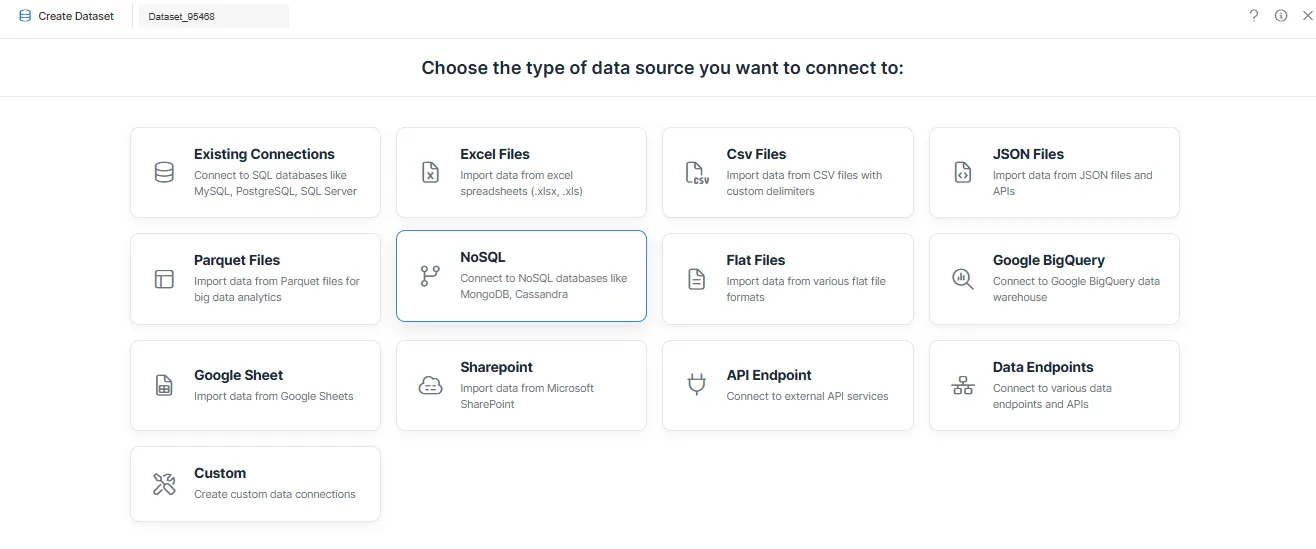
Step 2: Choose MongoDB Connection
- In the Select NoSQL Datasource screen, use the search bar if needed.
- Select the required MongoDB connection (for example,
foodApp). - Click the connection card to proceed.
Step 3: Select Database
- After selecting the connection, the Dataset Editor opens.
- From the Database dropdown in the left panel, select the required database (for example,
foodApp).
Step 4: Write MongoDB Query
- In the MongoDB Query editor, enter your query.
Example: Fetch All Documents
db.swiggy.find({})Step 5: Configure Output Columns
- Open the Output Columns tab to review column names and data types.
For detailed options, see Output Columns Tab Terminology.
Step 6: Preview Result
- Open the Preview Results tab to verify the data.
For detailed options, see Preview Columns Tab Terminology.
Step 7: Save Dataset
- Click Save.
- In the Save Dataset dialog, enter the dataset name (if needed) and choose the target folder.
- Click Save Dataset to complete the process.
Step 8: View Your Dataset
- Go to the Dataset Grid view.
- Search for your dataset by name.
- Your dataset is now available for use in dashboards, reports, and visualizations.
Related Guides
Explore other ways to create datasets in AIV:
| Data Source | Guide |
|---|---|
| Drag & drop | Create Dataset |
| Excel | Dataset using Excel |
| CSV | Dataset using CSV |
| JSON | Dataset using JSON |
| Parquet | Dataset using Parquet |
| Flat files | Dataset using Flat files |
| Google BigQuery | Dataset using Google BigQuery |
| Google Sheet | Dataset using Google Sheet |
| External sources | Dataset using External sources |
| Stored Procedure | Dataset using Stored Procedure |
| View | Dataset using View |