Data Source Selection Terminology
The Data Source Selection page is the first step in the Create Dataset workflow. It allows you to choose the type of data source from which the dataset will retrieve data.
This selection helps you:
- Define the origin of your dataset data (database, file, cloud, or API)
- Determine available options for connection and configuration in the next steps
- Match your data location to the correct ingestion path
- Proceed to the Connection Selection tab with the appropriate workflow
Refer to the dataset creation guide to open the Create Dataset flow and access the Data Source Selection step.
Data Source Selection Interface
The Data Source Selection screen presents available source types. Your choice determines which connection, upload, or configuration options appear in Step 2 – Connection Selection and Step 3 – General Tab.
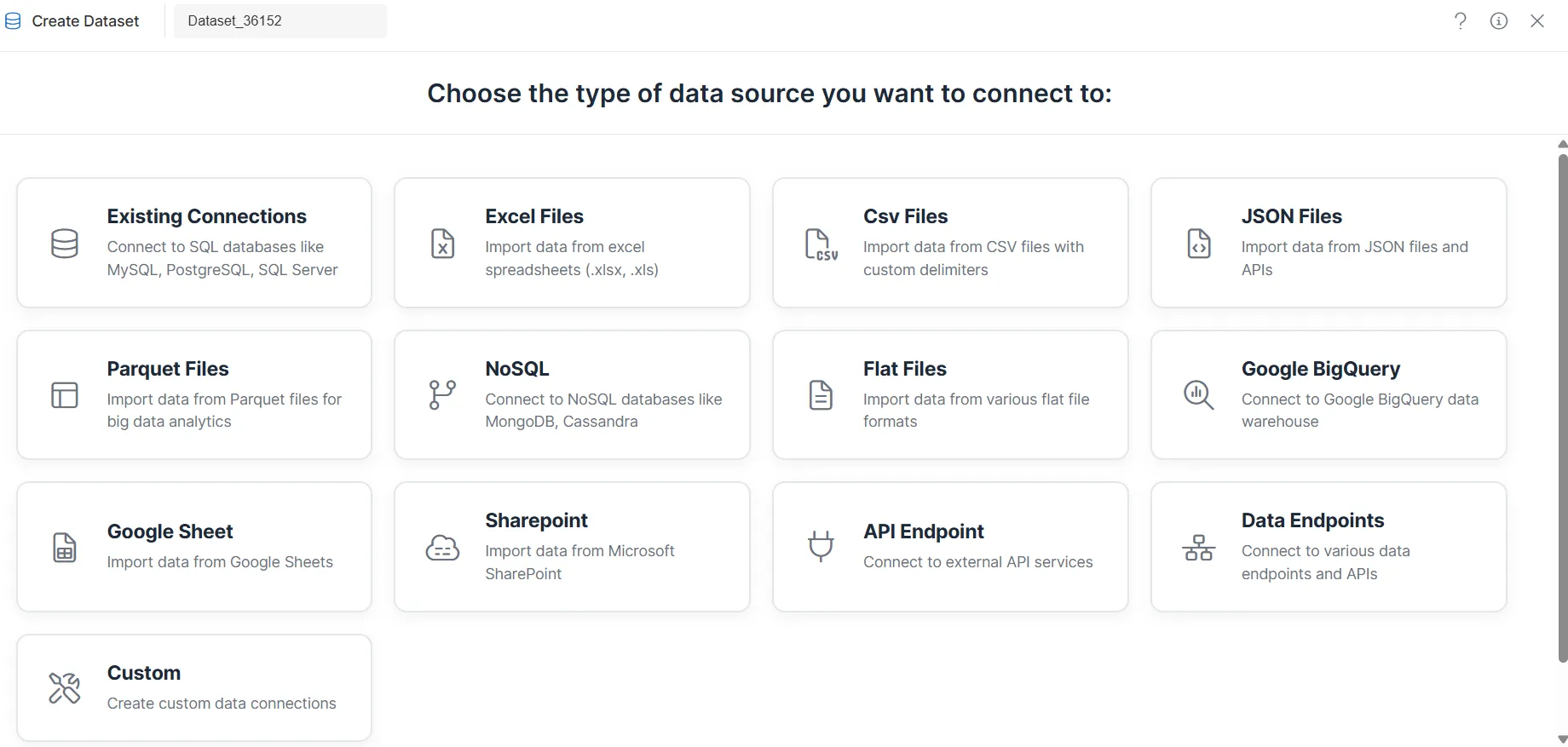
Available Data Source Categories
The system supports data sources in the following categories. Select the option that matches where your data lives.
Database & Connected Sources
Purpose
These options connect your dataset to relational databases, NoSQL stores, or pre-configured cloud and endpoint services. You will select or create a connection in the Connection Selection tab.
Options
- Existing Connections – Connect to relational databases such as MySQL, PostgreSQL, SQL Server, or Oracle via JDBC
- NoSQL – Connect to non-relational databases such as MongoDB or Cassandra
- Google BigQuery – Connect to Google BigQuery for large-scale analytics
- Google Sheets – Import data directly from Google Sheets
- SharePoint – Import data from Microsoft SharePoint
- Data Endpoints – Connect to supported external system endpoints
Key Points
- Requires a pre-configured connection or the ability to create one in the next step.
- Connection credentials and network access must be in place before dataset creation.
File-Based Sources
Purpose
These options let you build datasets from files stored locally or uploaded into the system. The Connection Selection tab will prompt for file upload or selection.
Options
- Excel Files – Import
.xlsxor.xlsspreadsheet files - CSV Files – Import comma-separated value files
- JSON Files – Import structured JSON files
- Parquet Files – Use columnar Parquet storage; configuration continues in the General Tab
- Flat Files – Enter or paste structured text (CSV, TSV, PSV, etc.) manually in the General Tab
Key Points
- File format and structure affect how columns and types are detected.
- For Parquet and Flat Files, the next step may skip connection selection and go directly to query or manual entry.
API & Custom Sources
Purpose
These options support data from REST APIs or custom integration patterns. Configuration is typically completed in the General Tab after selection.
Options
- API Endpoint – Connect to REST APIs; URL, method, headers, and parameters are configured in the General Tab
- Custom – Configure a custom connection using user-defined settings
Key Points
- API documentation (URL, method, authentication, parameters) should be available before starting.
- Custom sources may require environment-specific or admin-configured settings.
Key Points
- Select the data source type that matches your data location.
- Different data source types lead to different Connection Selection and General Tab workflows.
- Ensure you have the required credentials, files, or API details before proceeding.
Summary
The Data Source Selection step ensures that your dataset is tied to the correct kind of source—database, file, cloud, or API—so that subsequent steps show the right connection, upload, and configuration options. Choosing the appropriate type here sets the foundation for a smooth dataset creation experience.