File Manager Widget
Introduction
The widget allows users to view, manage, and organize files directly within the dashboard environment. It provides a familiar, explorer-like interface that supports key features such as:
- Browsing folders and files
- Uploading and downloading files
- Renaming, deleting, and creating new folders
- Drag-and-drop support
- Previewing documents and images
This widget is especially useful when working with large datasets, reports, or shared resources, and can be connected to multiple backend storage systems.
How to Use
-
Add File Manager Widget
-
Click on the File Manager Widget from the widget panel on the left side of the canvas.
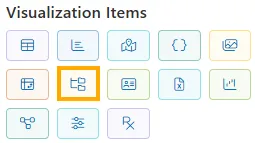
-
A file browser interface appears in the right panel with editable endpoint fields on the left.
-
-
Configure API Endpoints
On the left side, fill in the necessary API URLs:
Field Purpose Base URL Endpoint to manage file operations (copy, move, delete, etc.) Download URL Endpoint for downloading files Upload URL Endpoint for uploading new files Image URL Endpoint to preview/display image thumbnails in file explorer Example :
Base URL:     https://ej2-aspcore-service.azurewebsites.net/api/FileManager/FileOperations
Download URL: https://ej2-aspcore-service.azurewebsites.net/api/FileManager/Download
Upload URL:   https://ej2-aspcore-service.azurewebsites.net/api/FileManager/Upload
Image URL:    https://ej2-aspcore-service.azurewebsites.net/api/FileManager/GetImage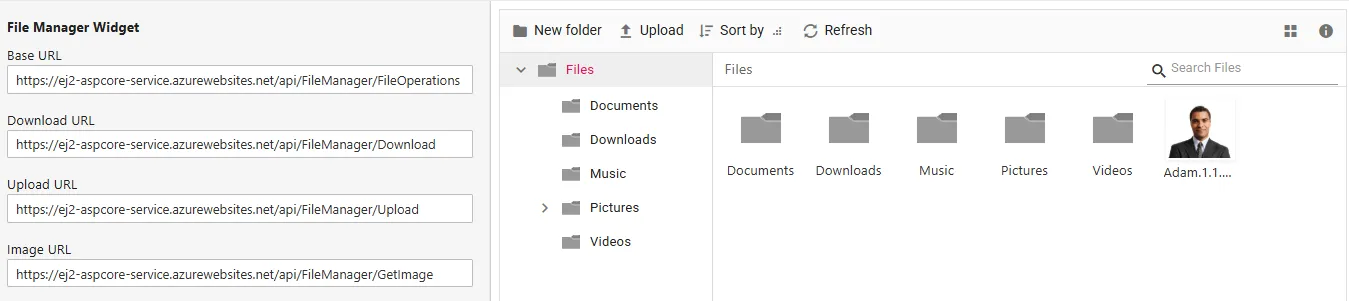
File Explorer Interface
Once the URLs are set, the right-hand pane will display a file explorer similar to your OS, with the following folder tree structure:
- Documents
- Downloads
- Music
- Pictures
- Videos
These are root directories retrieved via the Base URL.
Toolbar Button Descriptions
| Button | Function |
|---|---|
| New folder | Opens a prompt to enter a folder name, then creates it in the current directory |
| Upload | Opens the file picker to select and upload files to the current folder |
| Sort by | Allows sorting by name, date, size, etc. |
| Refresh | Reloads file explorer UI and updates the folder/file list |
Search Files
- A Search bar is provided in the top-right of the file list pane.
- Type part of a file or folder name to quickly filter results.
Folder Navigation
- Use the folder tree on the left to browse between:
- Documents
- Downloads
- Music
- Pictures
- Videos
- Subfolders can be expanded using the
>icon.
File Previews and Display
- Images and thumbnails are fetched using the Image URL
- File icons (folders, images, docs) update accordingly
- The center file pane shows the contents of the selected folder visually
Tips and Notes
- Ensure CORS is enabled on your APIs for proper functioning.
- The API URLs must conform to the Syncfusion FileManager standards.
- Use “Refresh” after uploading or modifying files to sync the view.
Finalize and Save
- Click Publish to make it accessible for others or viz.
- Use Save to store your visualization.