Scheduler / Calendar Widget
Introduction
The Scheduler Widget in AIV allows users to view, manage, and automate scheduling of events through an interactive calendar. It supports both manual (static) and dataset-driven (dynamic) scheduling.
View and manage events in various formats:
- Day, Week, Month, Agenda, Timeline, and Year views
Key features:
- Recurring events support
- Multi-calendar display
- Grouped and categorized scheduling
Best suited for team collaboration dashboards and planning interfaces.
Adding the Scheduler Widget
-
Select the Scheduler widget from the right vertical menu bar.
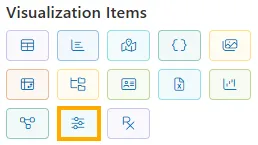
-
Once added, the widget UI appears with multiple configuration options, including:
-
Type selection
-
View configuration
-
Calendar start date
-
Dataset integration (for dynamic mode)
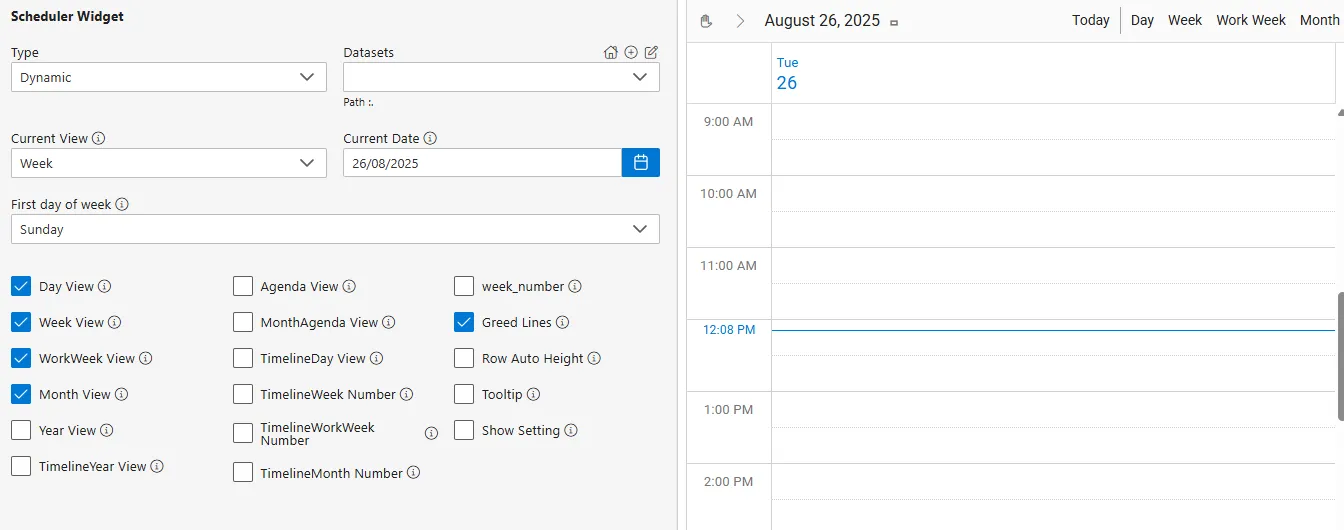
-
Scheduler Types
- Static: Add events manually via the interface.
- Dynamic: Load events in bulk via a connected dataset.
Key UI Options
| Field | Description |
|---|---|
| Type | Choose between Static or Dynamic |
| Current View | Initial view mode: Day, Week, WorkWeek, Month, Year, etc. |
| Current Date | Sets the starting point of the calendar |
| First Day of Week | Choose your starting weekday (e.g., Sunday, Monday) |
| Dataset | Connect data to populate events dynamically |
Available View Options (Checkboxes)
You can enable/disable the following views:
| View Option | Description |
|---|---|
| Day View | Displays a single day’s schedule. Useful for focusing on detailed daily planning. |
| Week View | Shows a full week (Sunday–Saturday) with all scheduled events. Ideal for weekly overviews. |
| WorkWeek View | Shows only working days (typically Monday–Friday), excluding weekends for business users. |
| Month View | Offers a calendar layout for the full month to manage long-term schedules at a glance. |
| Year View | Presents a high-level overview of events across the entire year. Best for strategic planning. |
| Agenda View | Lists all upcoming events sequentially, regardless of date, like a task list. |
| MonthAgenda View | Combines the month grid with a detailed list view of scheduled items. |
| TimelineDay View | Displays events for a single day in a timeline format, ideal for time-slot based schedules. |
| TimelineWeek Number | Timeline layout with week numbers shown, helpful for weekly breakdowns. |
| TimelineWorkWeek Number | Like TimelineWeek but focuses on workdays only (Mon–Fri). |
| TimelineMonth Number | Shows monthly timelines with corresponding month numbers for better orientation. |
| TimelineYear View | Timeline-style display for events spanning the whole year. |
| week_number | Adds ISO-style week numbers to the calendar view for reference. |
| Grid Lines | Adds visual dividers between time slots for better readability. |
| Row Auto Height | Automatically adjusts row height based on event content length. |
| Tooltip | Shows event details on hover without needing to click. |
| Show Setting | Displays additional configuration options for the scheduler layout. |
| Grid Lines | Help with time slot clarity. |
| Tooltip | Displays event info on hover. |
Repeat Options
Events can be scheduled to repeat by:
- Daily
- Weekly (select specific days)
- Monthly (date or day-based)
- Yearly (select month and date)
Dynamic Scheduler View
Once a dataset is connected, multiple events are rendered automatically.
You can still use all manual features on top of dynamic ones.
Summary
The Scheduler Widget is a powerful, flexible tool to visually manage time-based data. It supports static entries and dynamic datasets, making it ideal for both personal and enterprise-level scheduling solutions.