Configure Slack and Microsoft Teams Integrations for Automated Report Delivery
This guide walks you through configuring the AIV Report Bot so you can run reports directly from Slack or Microsoft Teams and receive the generated PDFs in the same channel. You will set up webhooks, environment variables, and optional Microsoft Graph API integration for file delivery.
What You’ll Learn
- What the AIV Report Bot is and how it works with Slack and Teams
- How to create and configure a Slack app and slash command
- How to create Teams incoming and outgoing webhooks and (optionally) register an Azure app for Graph API
- How to configure AIV webhooks and bot
.envvariables - How to run reports from Slack and Teams and where to find troubleshooting tips
What is the AIV Report Bot?
The AIV Report Bot is a bridge between AIV and collaboration platforms. Users send a simple command (for example, /report name:SalesReport id:3310 in Slack or @AIV Bot SalesReport , 3310 in Teams). The bot triggers AIV to generate the report, receives the PDF, and uploads it to the channel.
| Characteristic | Description |
|---|---|
| Slack | Slash command /report; bot receives the command, calls AIV, and posts the file to the configured channel |
| Teams | Outgoing webhook / @mention; bot receives the message, calls AIV, and uploads the file to the channel (optionally via Graph API) |
| Use case | Automated report delivery to Slack channels or Teams channels without leaving the collaboration app |
Why use the Report Bot
- Run reports from chat – No need to open AIV to request a report.
- Files in the channel – PDFs are posted or uploaded directly where your team works.
- Same AIV webhook – Both Slack and Teams can use the same AIV webhook URL; the bot routes the file to the correct platform.
Prerequisites
Before you begin:
- The AIV Report Bot server is deployed and reachable via a public HTTPS URL (for example, using ngrok).
- For Slack: A Slack workspace where you can create an app and install it; access to api.slack.com/apps.
- For Teams: A Microsoft Teams team and channel; access to Azure Portal; for direct file uploads, an
aivhub.com(or your tenant) account for Graph API authentication. - You have Master Data access in AIV to create webhooks.
Need to create a webhook in AIV?
See Webhook Overview for how to create and manage webhooks in Master Data → Webhook.
Part 1 — Slack Integration
Step 1: Create a Slack Account and Workspace (if you don’t have one)
If you do not already have a Slack account:
-
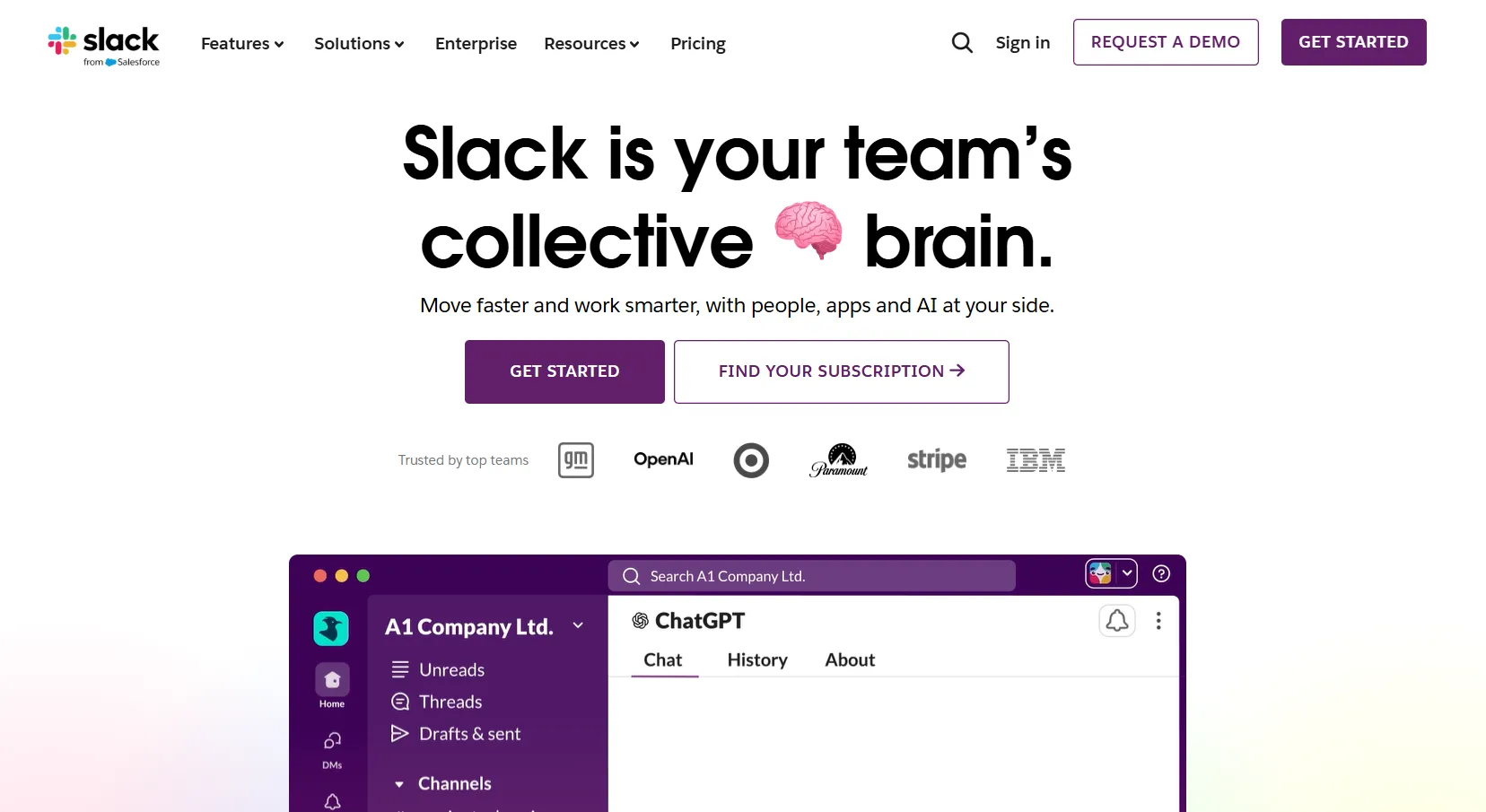
Go to slack.com.
-
Click Get started.
-
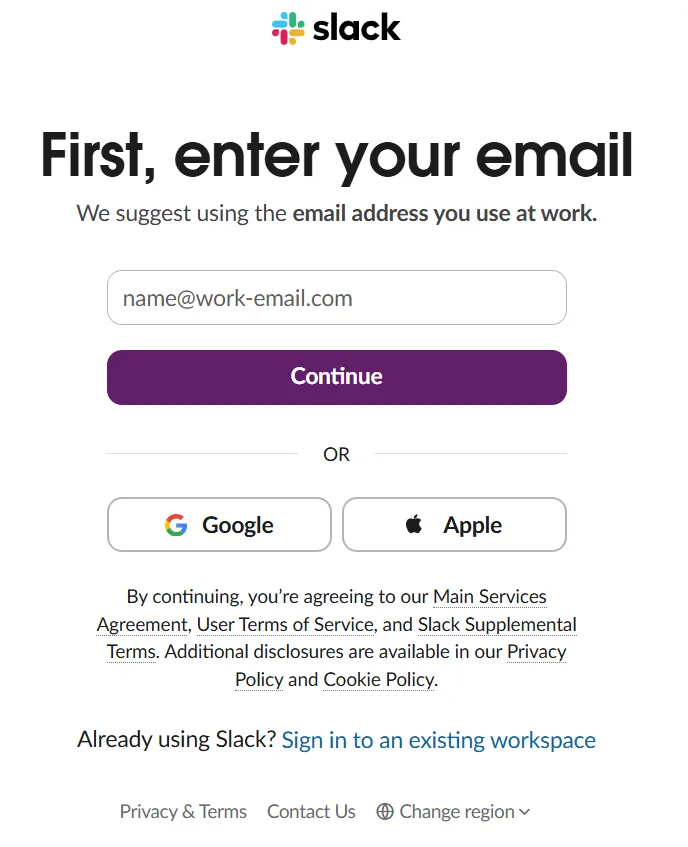
Enter your email address and click Continue. Follow the prompts to verify your email and complete account creation.
-
Complete the 4-step workspace setup (Slack will guide you):
Step 1 of 4 – Name your workspace
Enter a name your team will recognize (for example, your company or team name, such as AIVHUB). Click Next.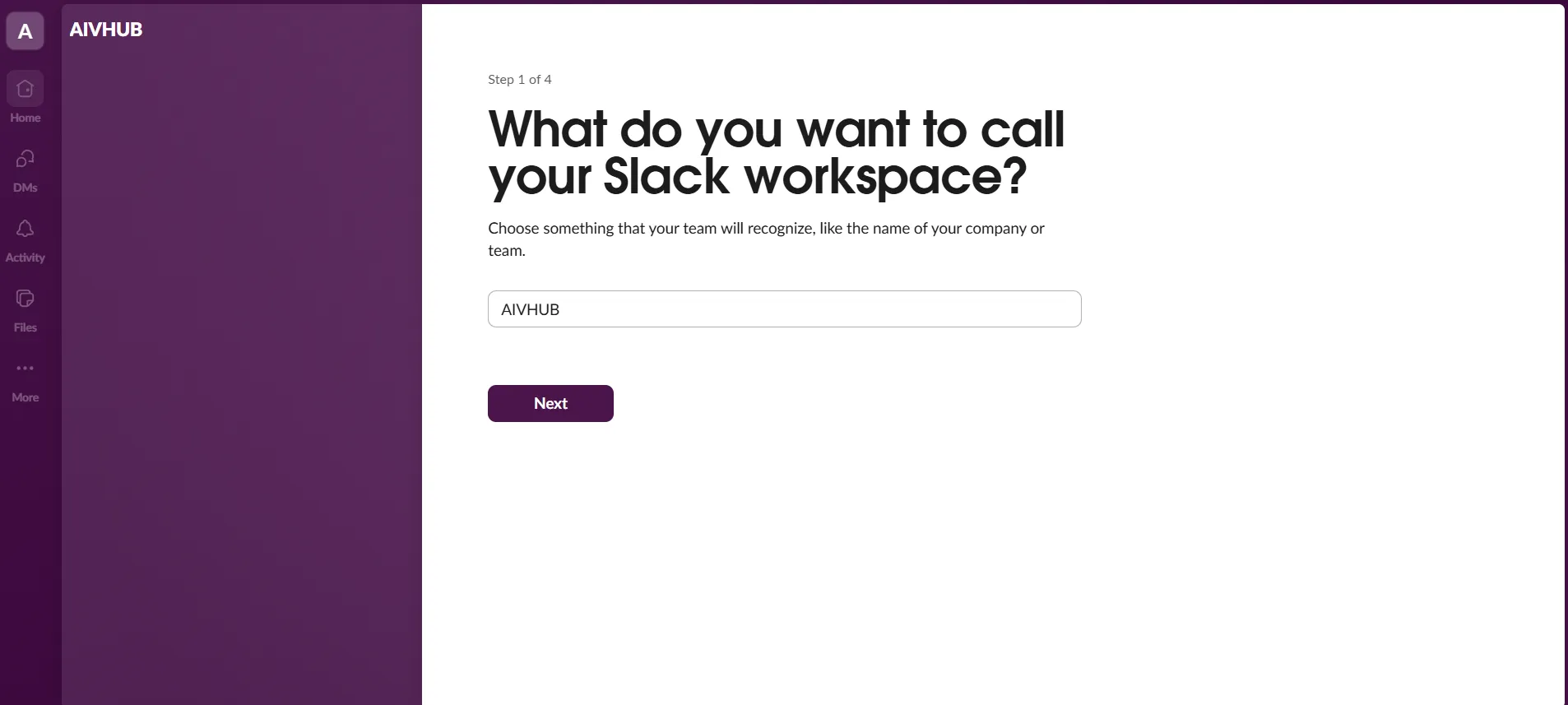
Step 2 of 4 – Your name and profile photo
Enter your display name (for example, Admin). Optionally upload a profile photo. Click Next.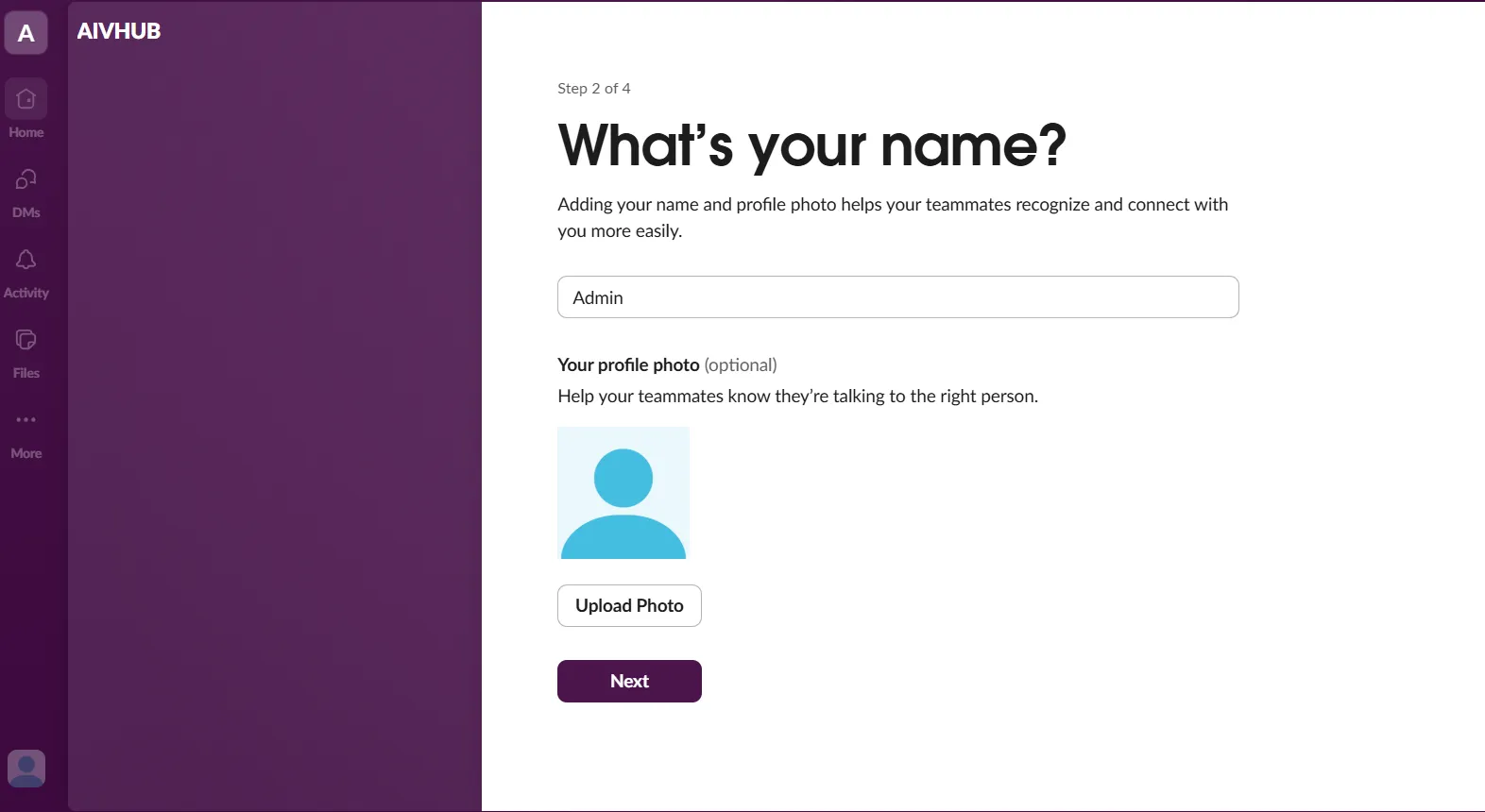
Step 3 of 4 – Invite teammates
Add coworkers by email, use Add from Google Contacts, or Copy Invite Link. You can click Skip this step and invite people later.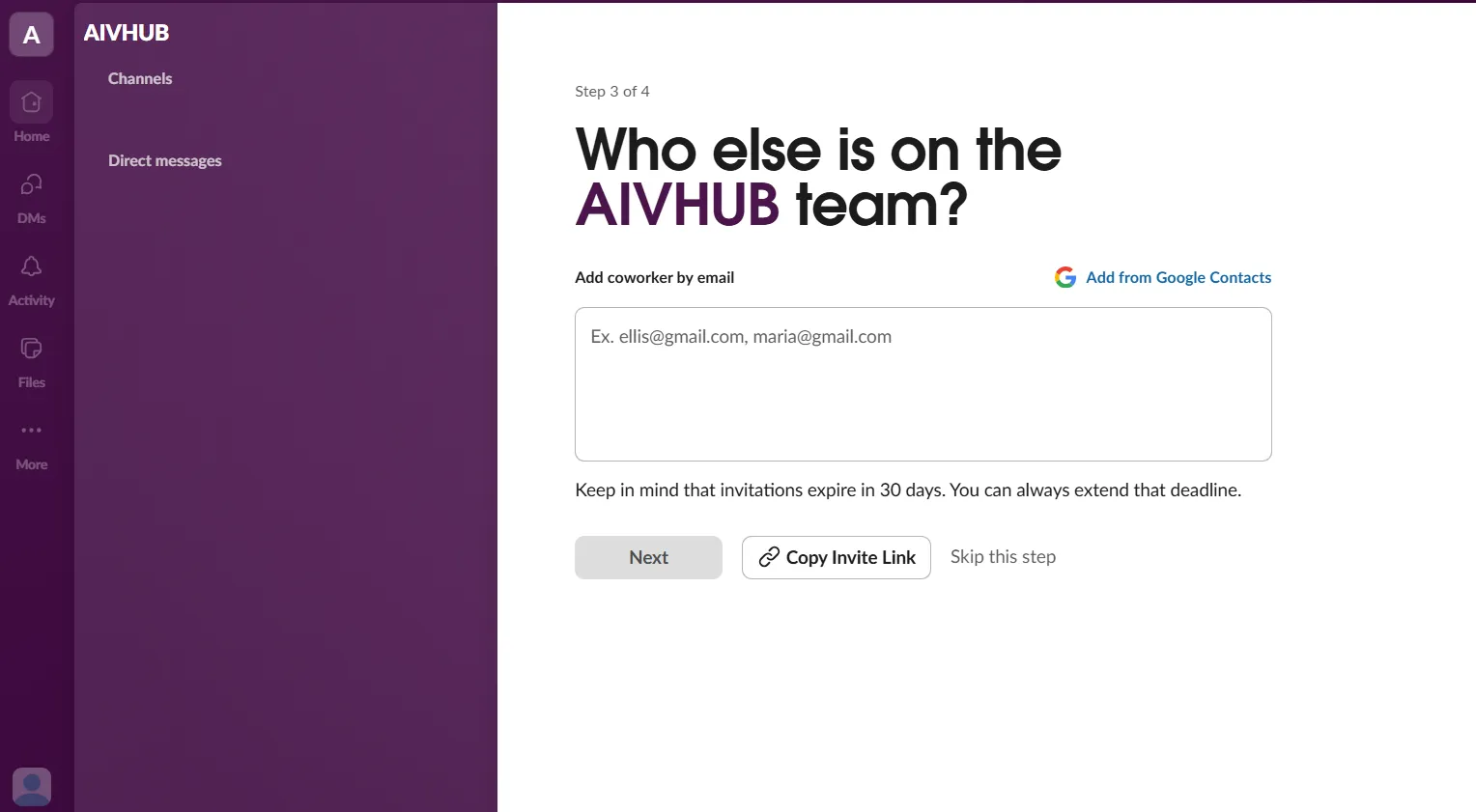
Step 4 of 4 – Choose a plan
Choose Start with Pro (paid) or Start with the Limited Free Version. For trying the AIV Report Bot, the free version is sufficient. You may see a Welcome to Slack! tip—click Next or close it to reach your workspace.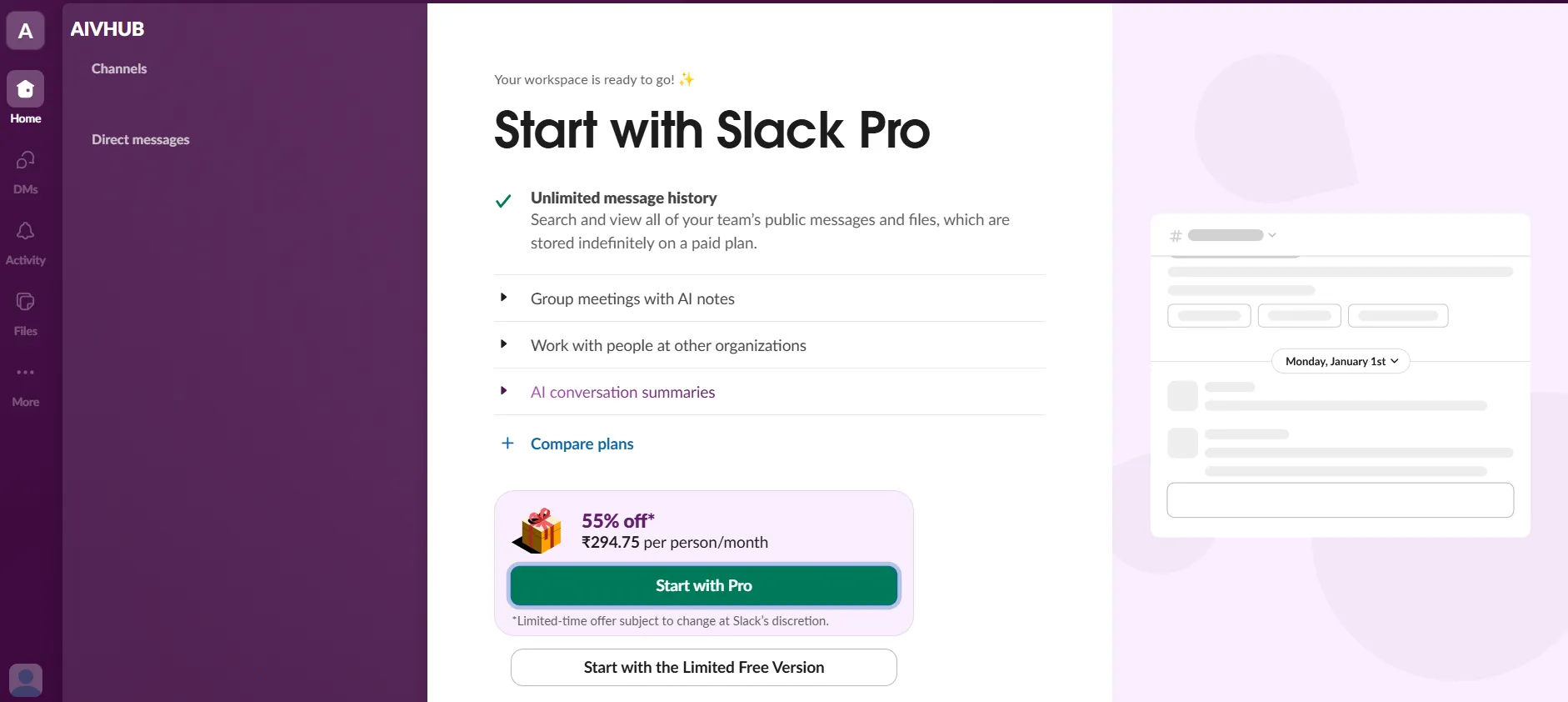
-
Once your workspace is ready and you see your channels (for example, #general or #new-channel), proceed to Step 2 to create an app at the Slack API.
Step 2: Create a Slack App
-
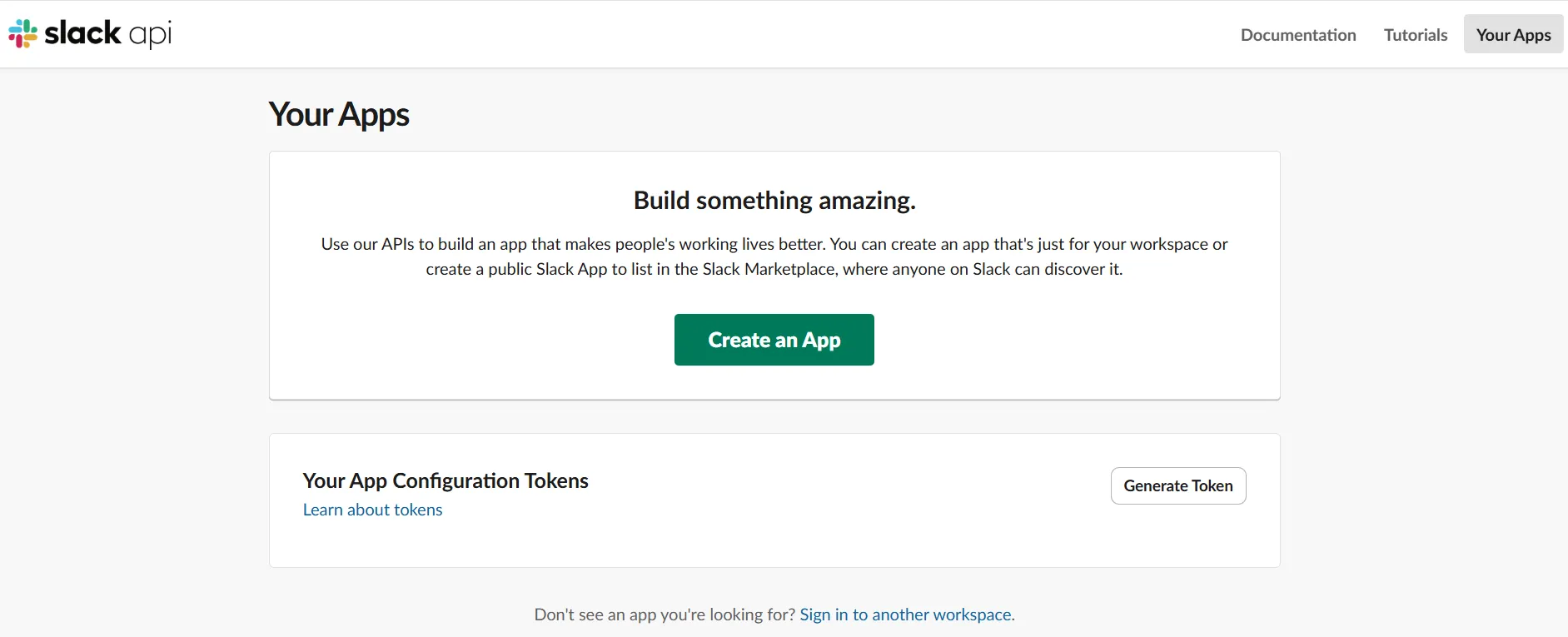
Go to the Slack API portal at api.slack.com/apps and sign in with the same Slack account.
-
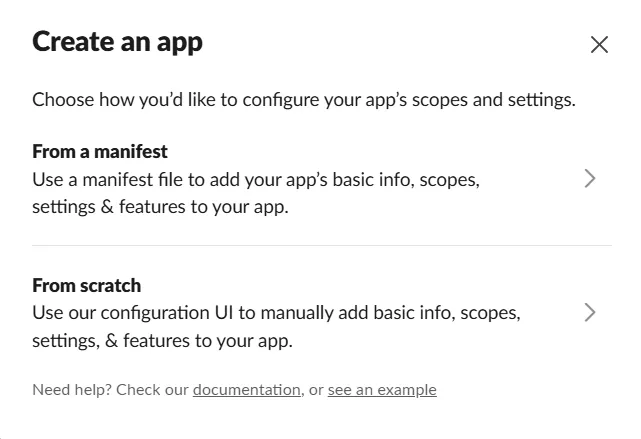
Click Create an App → From scratch.
-
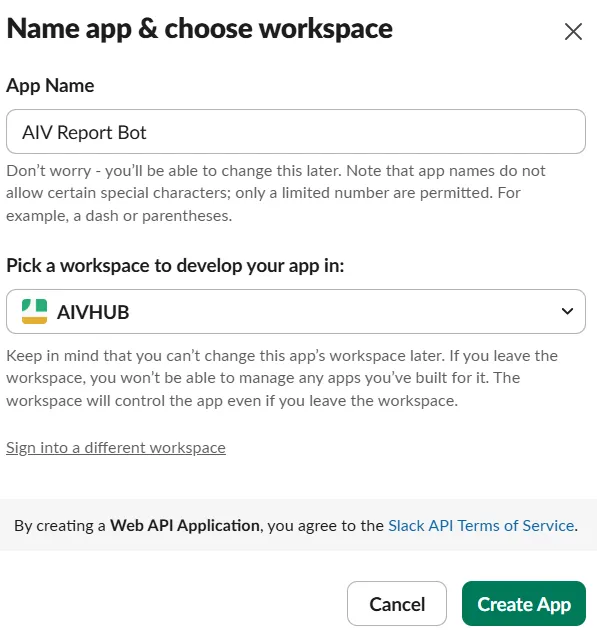
Enter an app name (for example, AIV Report Bot) and select the workspace you want to add the app to.
-
Click Create App.
Step 3: Configure Bot Permissions and Incoming Webhook
-
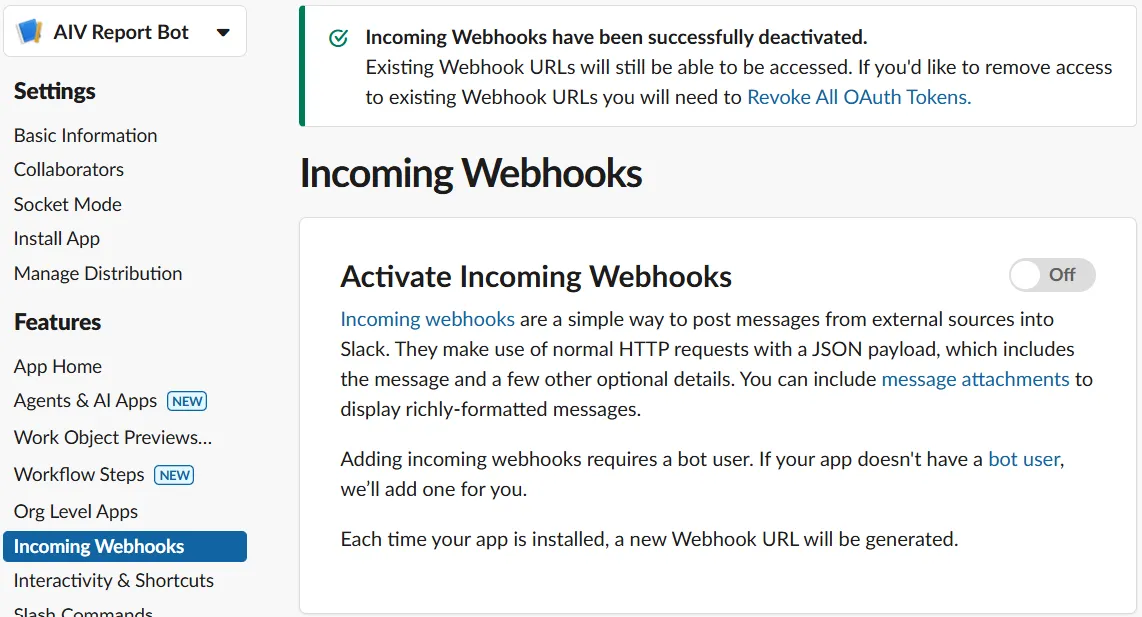
In the left sidebar, under Features, click Incoming Webhooks.
-
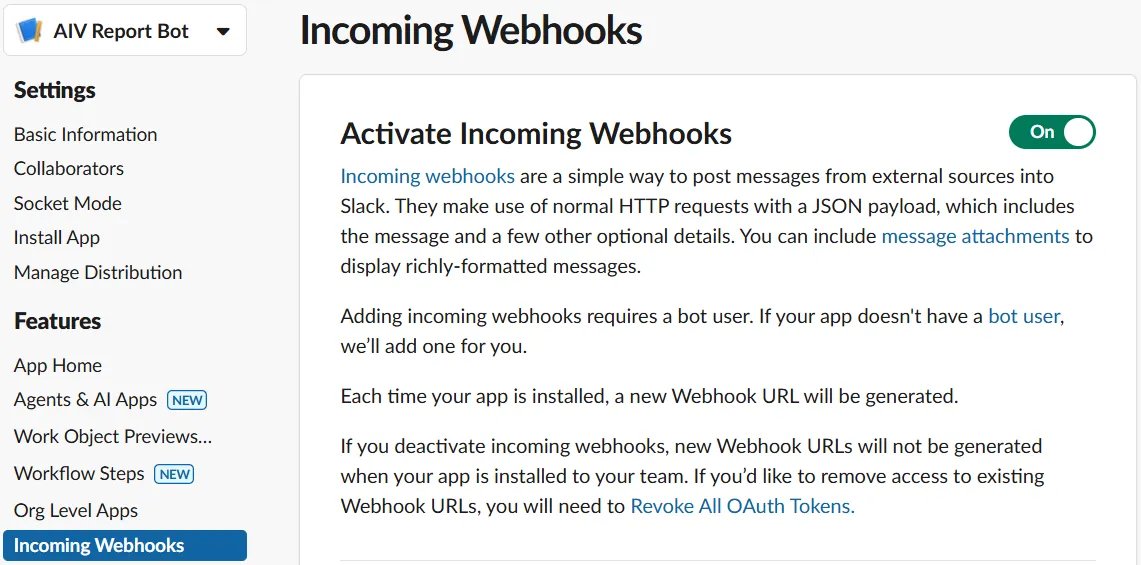
Toggle Activate Incoming Webhooks to On.
-
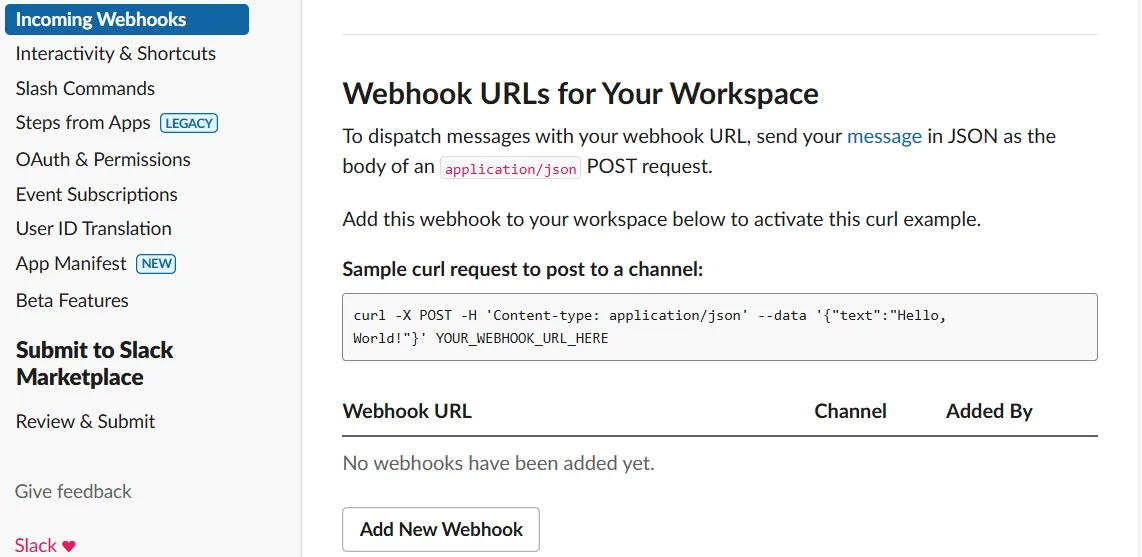
Under Webhook URLs for Your Workspace, click Add New Webhook.
-
In the Allow the “AIV Report Bot” app to access Slack dialog, choose the Workspace and select the Channel for webhook where reports should be delivered (for example,
#reportsor a private channel you own), then click Allow.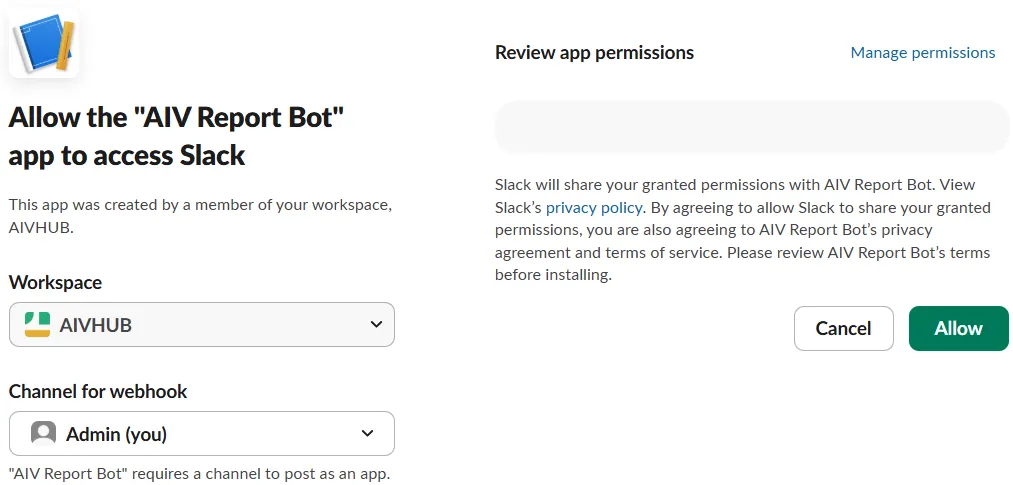
-
After the webhook is added, you will see a Webhook URL in the list. Copy this URL and keep it handy; you will map it to the appropriate environment variable later (for example,
SLACK_WEBHOOK_URL).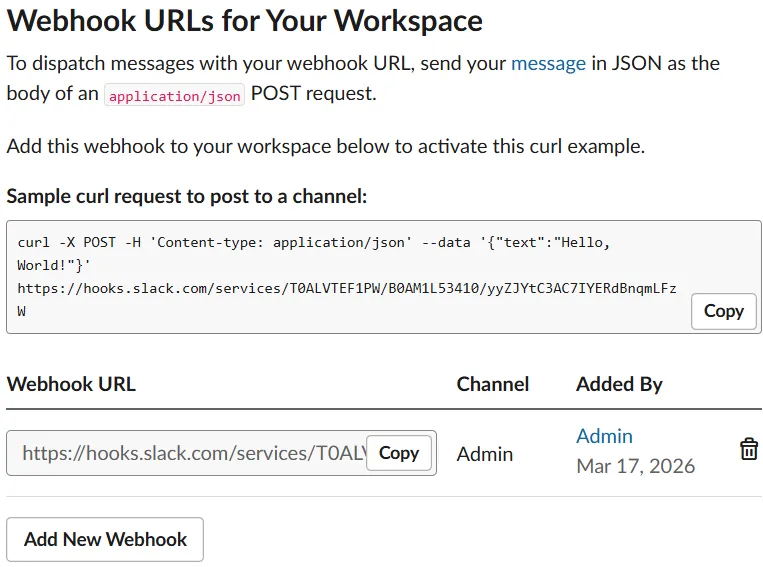
-
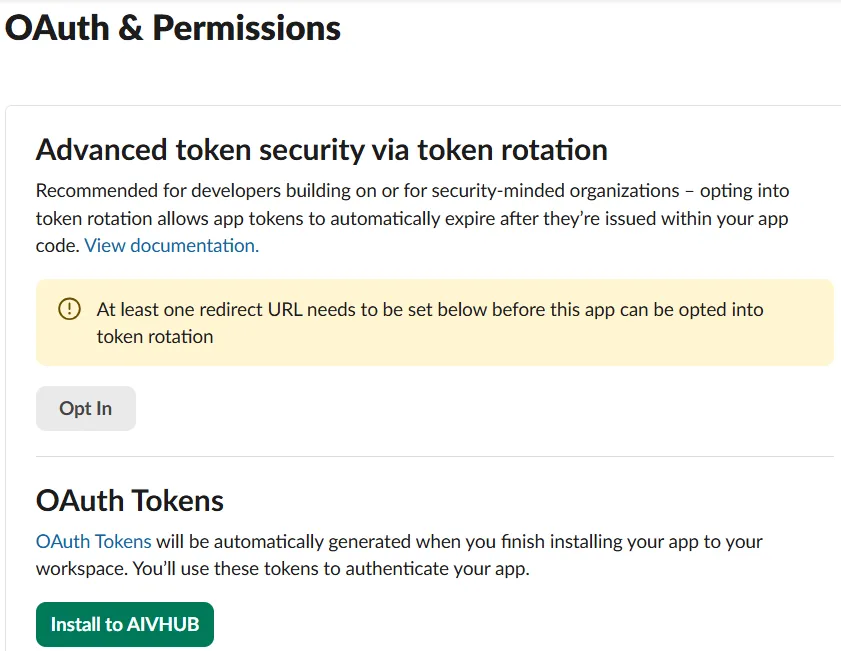
Next, in the left sidebar, under Features, click OAuth & Permissions.
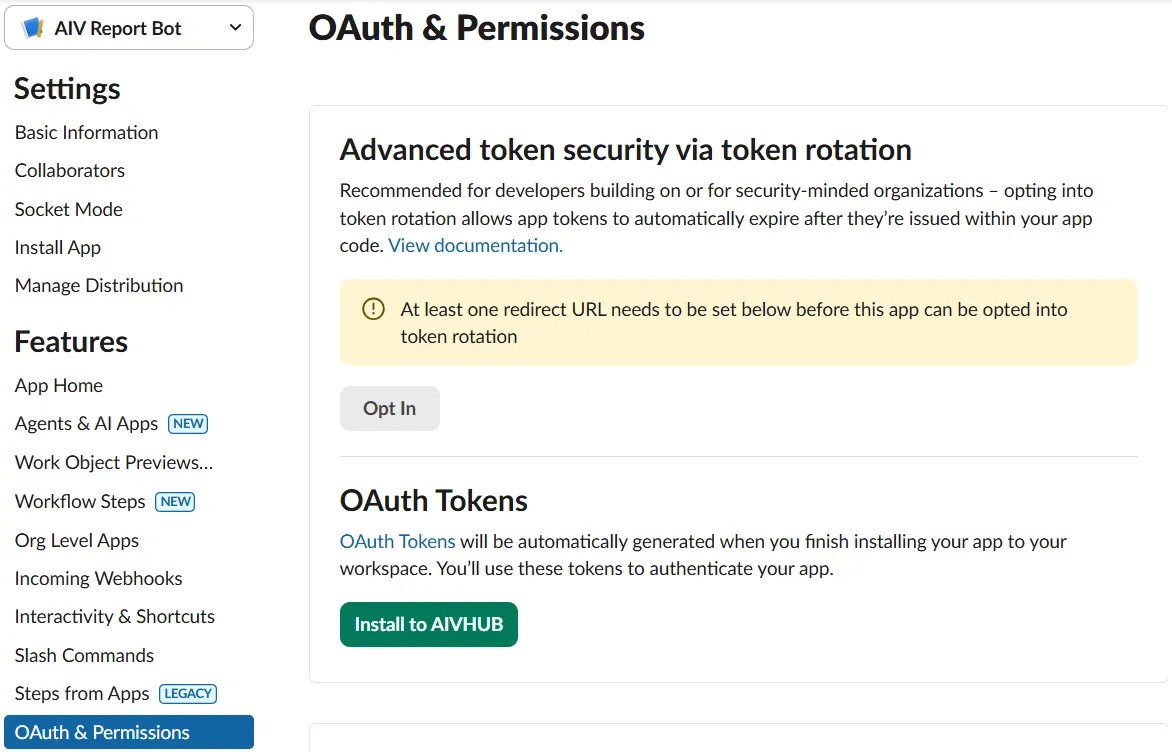
-
Scroll to the Scopes section. Under Bot Token Scopes, click Add an OAuth Scope.
-
Add each of the following Bot Token Scopes one by one (search by name in the dropdown if needed):
-
files:write– Upload report files to channels. -
chat:write– Post messages to channels. -
commands– Register the/reportslash command. -
channels:read– Read channel information.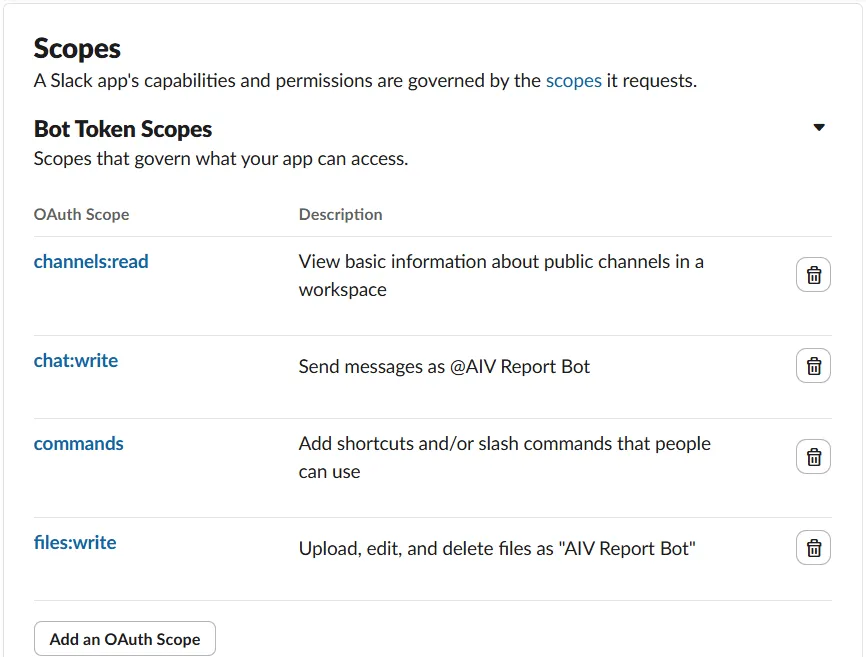
-
-
After adding all four scopes, the Install to [Your Workspace] button (for example, Install to AIVHUB) becomes active. Click it to install the app to your workspace.
-
Complete the authorization in the browser if prompted. On the OAuth & Permissions page, copy the Bot User OAuth Token (starts with
xoxb-) and save it asSLACK_BOT_TOKENin your.envfile. -
Signing Secret (for
SLACK_SIGNING_SECRETin.env) is under Settings → Basic Information. Scroll to App Credentials and click Show next to Signing Secret, then copy the value.
Step 4: Set Up the Slash Command
-
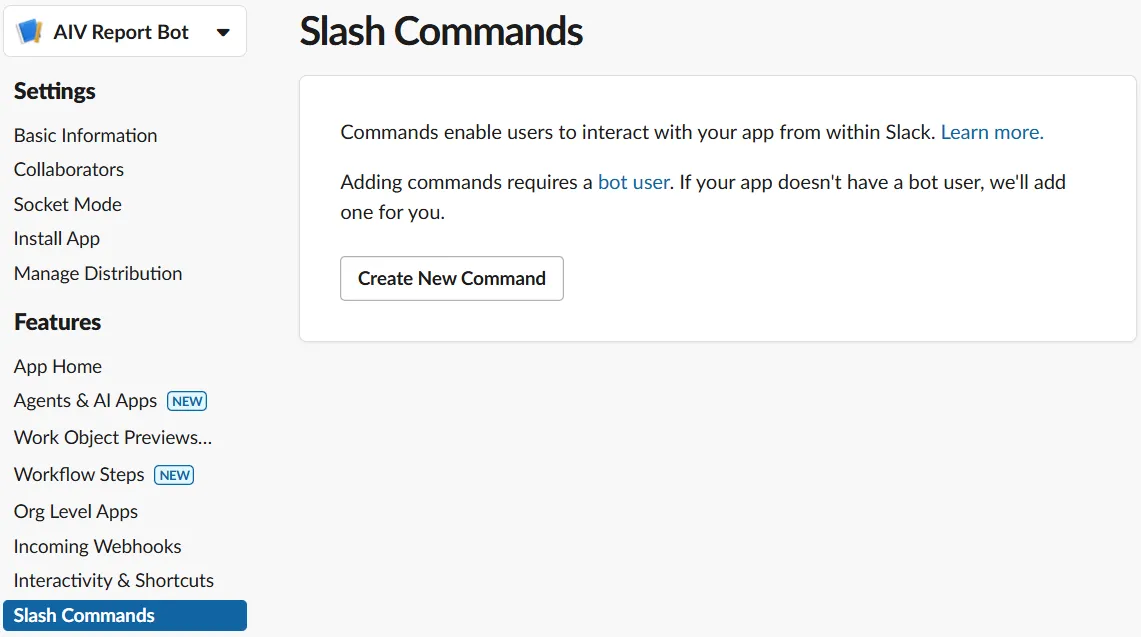
In the Slack app, go to Slash Commands → Create New Command.
-
Use the following values:
Field Value Command /reportRequest URL https://YOUR-NGROK-URL/slack-commandShort Description Generate an AIV reportUsage Hint name:<ReportName> id:<FileID> -
Save the command.
Step 5: Configure AIV Webhook for Slack
In AIV, go to Master Data → Webhook and create a new webhook with:
| Field | Value |
|---|---|
| Name | SlackFileDelivery (or any name you prefer) |
| Method | POST |
| URL | https://YOUR-NGROK-URL/aiv/webhook |
| Headers | Content-Type: multipart/form-data |
| Body | Leave empty |
| Params | Leave empty |
After saving, note the Webhook ID (for example, 65230). You will use it as SLACK_WEBHOOK_ID in the bot .env file.
Step 6: Add Slack Environment Variables
On the bot server, add the following to your .env file:
# Slack Configuration
SLACK_BOT_TOKEN=xoxb-...          # Bot User OAuth Token from Slack
SLACK_CHANNEL_ID=C0XXXXXXXXX      # Channel ID for report delivery
SLACK_SIGNING_SECRET=...          # From Slack app → Basic Information
SLACK_WEBHOOK_URL=https://hooks.slack.com/services/T.../B.../XXX   # Optional; from Incoming Webhooks
SLACK_WEBHOOK_ID=65230            # Webhook ID from AIV (Step 4)
Replace YOUR-NGROK-URL in the slash command Request URL with your actual public URL.
Step 7: Use the Bot in Slack
Command format: /report name:<ReportName> id:<FileID>
Examples:
/report name:Employees id:1750
/report name:CreditCard id:2001
/report name:SalesReport id:3310
What happens: Slack sends the command to the bot → the bot calls AIV to generate the report → AIV sends the PDF to the bot → the bot uploads the PDF to the Slack channel and you see it in the channel.
Part 2 — Microsoft Teams Integration
Step 1: Create Teams Incoming Webhook
- In Microsoft Teams, open the team and channel where you want reports (for example, REPORTS).
- Click ⋯ next to the channel name → Connectors (or Settings → Connectors).
- Search for Incoming Webhook → Configure.
- Give it a name (for example, AIV Bot) → Create.
- Copy the generated webhook URL (e.g.
https://...webhook.office.com/...) and save it for the.envfile asTEAMS_INCOMING_WEBHOOK_URL.
Step 2: Create Outgoing Webhook (Bot)
- In Teams, click ⋯ next to the team name → Manage team.
- Open the Apps tab → Create an outgoing webhook (or Manage → Create).
- Fill in:
| Field | Value |
|---|---|
| Name | AIV Bot |
| Callback URL | https://YOUR-NGROK-URL/teams/run-report |
| Description | AIV Report Generation Bot |
- Click Create. Copy the Security Token (HMAC) immediately—it is shown only once. This is
TEAMS_BOT_TOKENin your.envfile.
Step 3: Configure AIV Webhook for Teams
In AIV, go to Master Data → Webhook and create a webhook:
| Field | Value |
|---|---|
| Name | Teams_File_Delivery (or any name) |
| Method | POST |
| URL | https://YOUR-NGROK-URL/aiv/webhook |
| Headers | Content-Type: multipart/form-data |
| Body | Leave empty |
Note: Both Slack and Teams webhooks in AIV can point to the same URL (
.../aiv/webhook). The bot routes the file to the correct platform based on who triggered the report.
After saving, note the Webhook ID for TEAMS_WEBHOOK_ID in .env.
Step 4: (Optional) Register Azure App for Graph API File Upload
To upload files directly to the Teams channel (instead of download links), register an app in Azure and complete one-time OAuth:
- In Azure Portal → App registrations → New registration.
- Name (e.g. AIV Teams Bot), Single tenant → Register.
- Note Application (client) ID and Directory (tenant) ID from the overview.
- Certificates & secrets → New client secret → set description and expiry → Add → copy the Value (client secret).
- API permissions → Add a permission → Microsoft Graph → Delegated → add
Files.ReadWrite,Sites.ReadWrite.All,offline_access,User.Read. - Authentication → Add a platform → Web → Redirect URI:
https://YOUR-NGROK-URL/auth/callback→ enable Access tokens and ID tokens → Configure.
Step 5: Add Teams and Graph Environment Variables
Add to your .env file:
# Teams Configuration
TEAMS_INCOMING_WEBHOOK_URL=https://...webhook.office.com/...
TEAMS_BOT_TOKEN=base64HMACtokenFromOutgoingWebhook
TEAMS_WEBHOOK_ID=65230    # From AIV Webhook (Step 3)

# Microsoft Graph API (optional, for direct file upload)
GRAPH_CLIENT_ID=xxxxxxxx-xxxx-xxxx-xxxx-xxxxxxxxxxxx
GRAPH_CLIENT_SECRET=your-client-secret-value
GRAPH_TENANT_ID=xxxxxxxx-xxxx-xxxx-xxxx-xxxxxxxxxxxx
GRAPH_TEAMS_ID=xxxxxxxx-xxxx-xxxx-xxxx-xxxxxxxxxxxx      # From Teams channel link (groupId)
GRAPH_CHANNEL_ID=19:xxxxx@thread.tacv2                  # From Teams channel link
GRAPH_REDIRECT_URI=https://YOUR-NGROK-URL/auth/callback
GRAPH_REFRESH_TOKEN=     # Auto-populated after one-time /auth/login
Step 6: One-Time Authentication (Graph API)
If you use Graph API for file upload:
- Deploy the bot:
docker compose down && docker compose up -d --build. - Open
https://YOUR-NGROK-URL/auth/loginin a browser. - Sign in with the Microsoft account that has access to the Teams channel (e.g.
aivhub.com). - After success, the refresh token is saved automatically. Reports will then upload directly to the channel.
Step 7: Use the Bot in Teams
Command format: @AIV Bot <ReportName> , <FileID>
Examples:
@AIV Bot Employees , 1750
@AIV Bot CreditCard , 2001
@AIV Bot SalesReport , 3310
What happens: Teams sends your @mention to the bot → the bot calls AIV → AIV generates the PDF and sends it to the bot → the bot uploads the file to the Teams channel (e.g. Files tab) and posts a message with the link.
Part 3 — Shared Configuration and Reference
Full .env Example
A combined example (replace placeholders with your values):
# — AIV —
AIV_API_KEY=your-aiv-api-key
AIV_API_ENDPOINT=https://aiv.example.com:8086/aiv/v5/api/request/add
AIV_BASE_URL=https://aiv.example.com:8086
SLACK_WEBHOOK_ID=65230
TEAMS_WEBHOOK_ID=65230

# — Slack —
SLACK_BOT_TOKEN=xoxb-...
SLACK_CHANNEL_ID=C0XXXXXXXXX
SLACK_SIGNING_SECRET=...
SLACK_WEBHOOK_URL=https://hooks.slack.com/...

# — Teams —
TEAMS_INCOMING_WEBHOOK_URL=https://...webhook.office.com/...
TEAMS_BOT_TOKEN=base64...
PUBLIC_BASE_URL=https://YOUR-NGROK-URL
TEAMS_FILE_EXPIRY_HOURS=24

# — Microsoft Graph API —
GRAPH_CLIENT_ID=...
GRAPH_CLIENT_SECRET=...
GRAPH_TENANT_ID=...
GRAPH_TEAMS_ID=...
GRAPH_CHANNEL_ID=19:...@thread.tacv2
GRAPH_REDIRECT_URI=https://YOUR-NGROK-URL/auth/callback
GRAPH_REFRESH_TOKEN=

# — Flask —
PORT=8011
FLASK_DEBUG=False
Available Bot Routes
| Method | Route | Purpose |
|---|---|---|
| GET | /health | Health check — verify the bot is running |
| GET | /auth/login | Microsoft OAuth login (one-time setup for Graph API) |
| GET | /auth/callback | OAuth callback — saves refresh token |
| GET | /download/<token>/<file> | Fallback file download when Graph API unavailable |
| POST | /slack-command | Receives /report commands from Slack |
| POST | /teams/run-report | Receives @AIV Bot messages from Teams |
| POST | /aiv/webhook | Receives completed report files from AIV |
| GET | /logs | View application logs (e.g. ?lines=100&level=ERROR) |
Troubleshooting
| Problem | Solution |
|---|---|
| Report goes to wrong platform | Run one report at a time; the bot uses a queue per report name. |
Slack: channel_not_found | Ensure SLACK_CHANNEL_ID starts with C (not D). Right-click the channel → Copy link → extract the ID. |
| Teams: HMAC signature error | Verify TEAMS_BOT_TOKEN matches the token from the outgoing webhook setup. |
| Graph API: No refresh token | Visit https://YOUR-NGROK-URL/auth/login and sign in with the account that has access to the channel. |
| File not delivered | Confirm AIV webhook URL is .../aiv/webhook (no ?platform= suffix) and that SLACK_WEBHOOK_ID / TEAMS_WEBHOOK_ID match the IDs in AIV. |
Related Guides
| Topic | Guide |
|---|---|
| Webhooks in AIV | Webhook Overview |
| Master Data | Introduction |