Google Map API Key
How to Generate a Google Maps API Key
Official Google Pages
Steps to Generate a Google Maps API Key
-
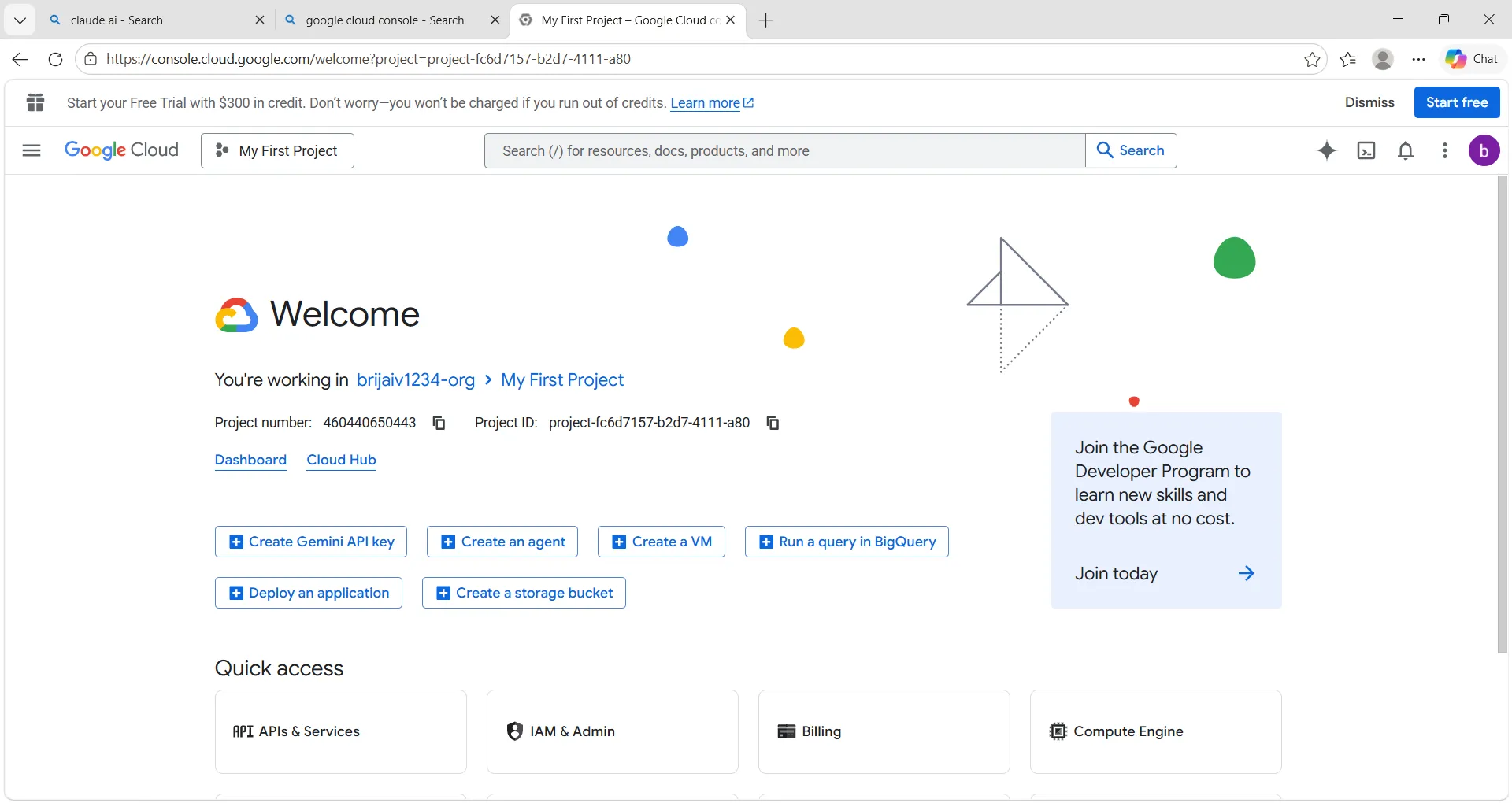
Sign in to Google Cloud Console.
-
Create a new project or select an existing project.
-
Enable billing for the selected project.
-
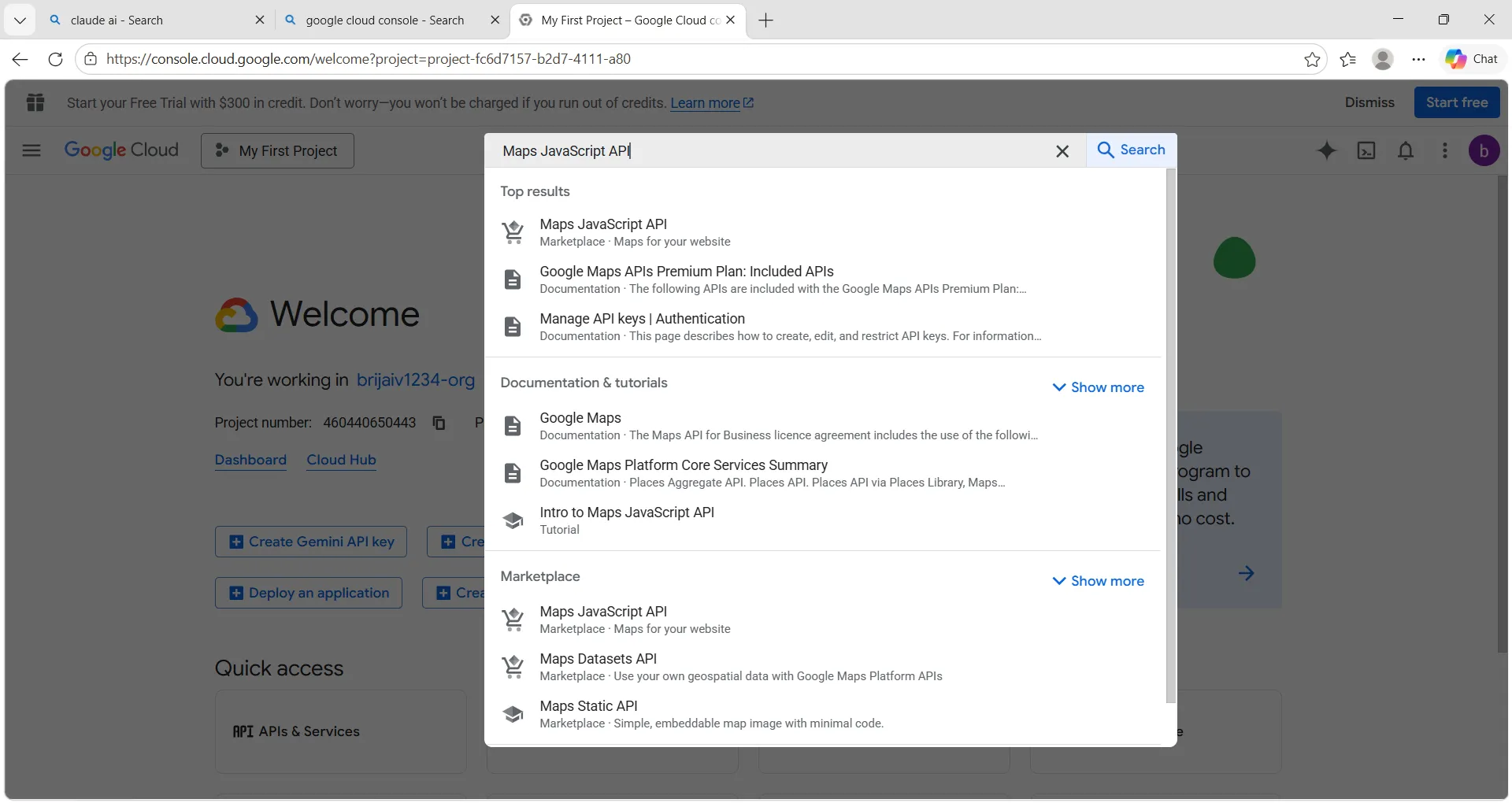
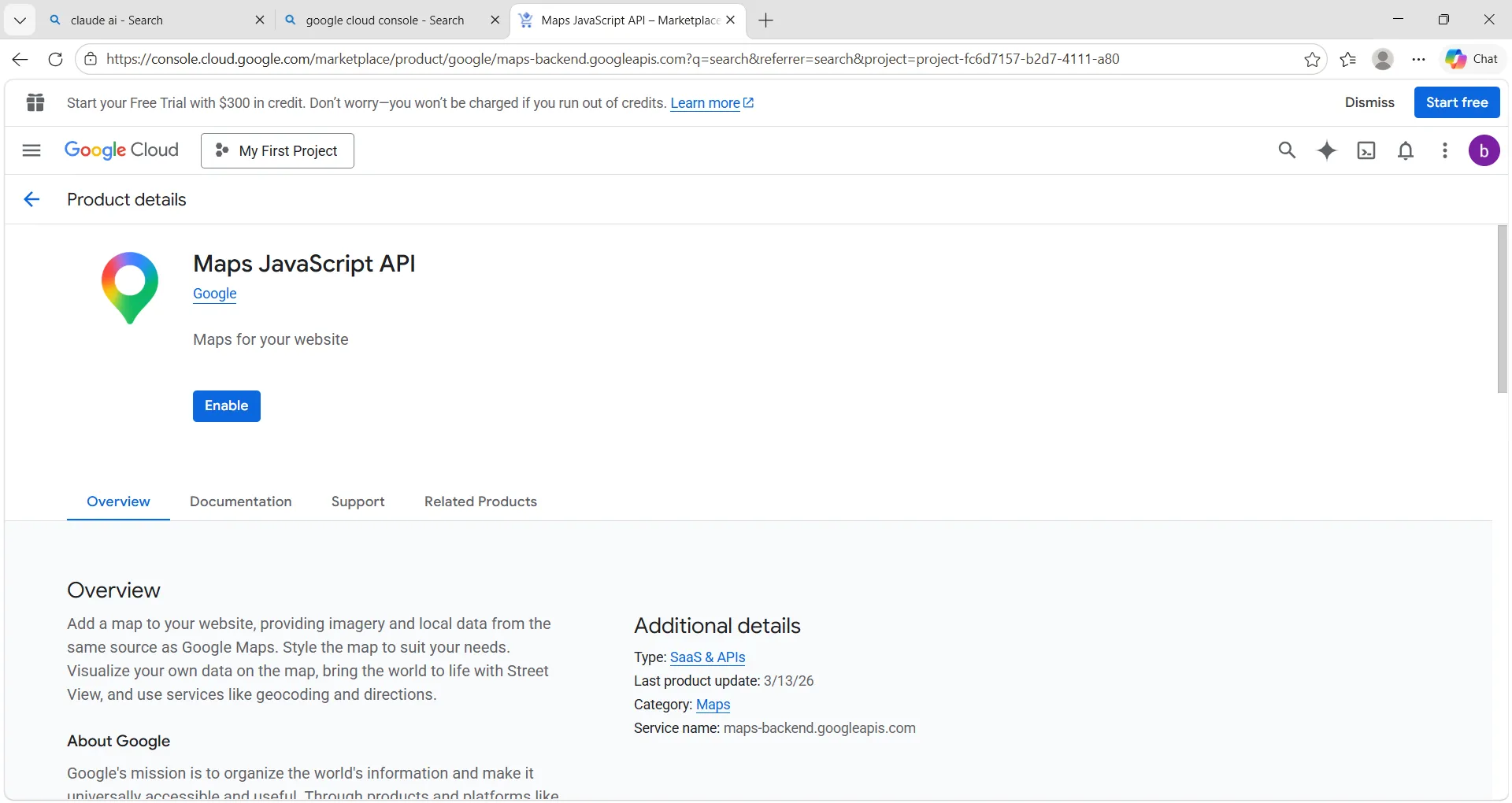
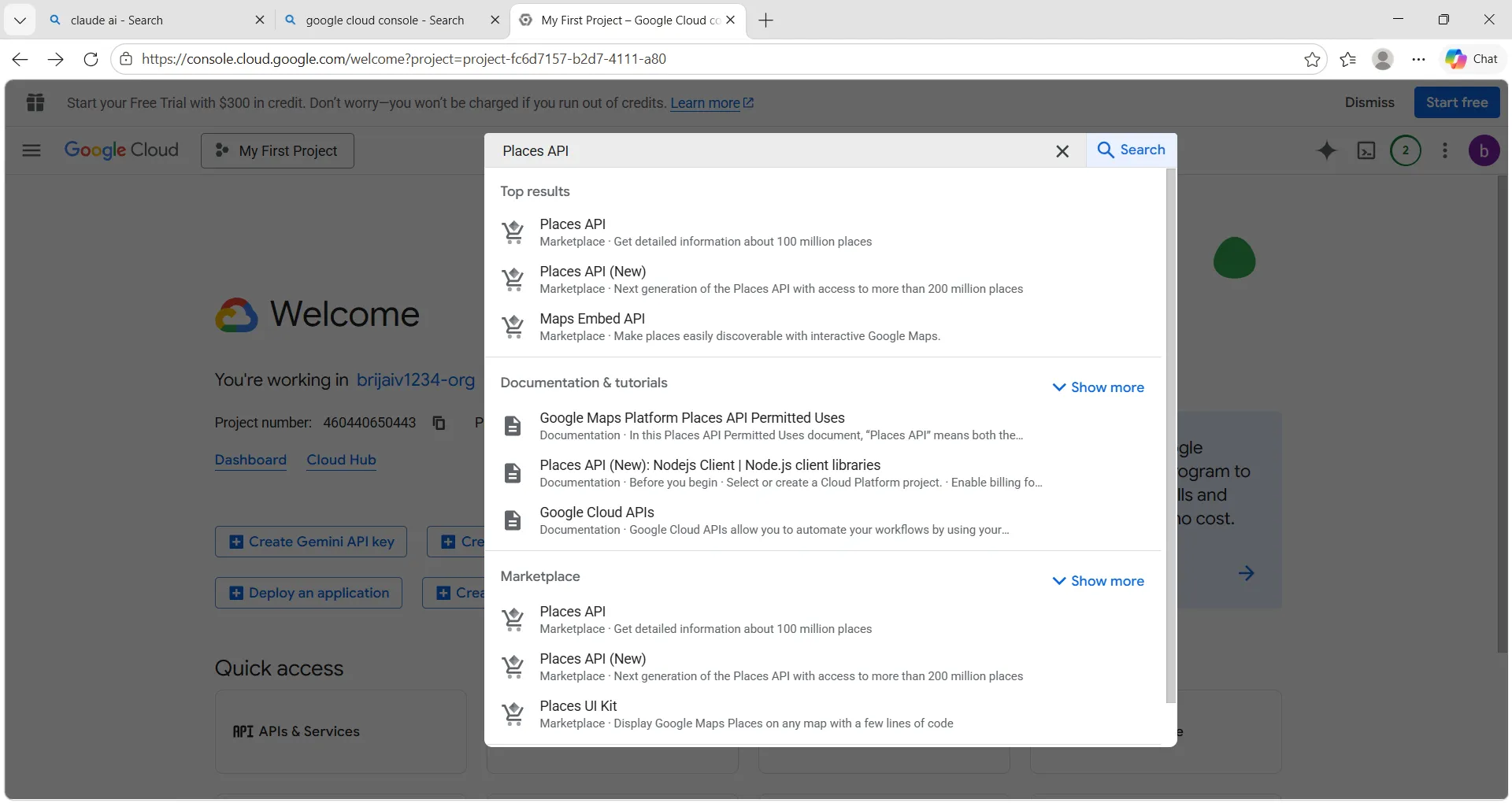
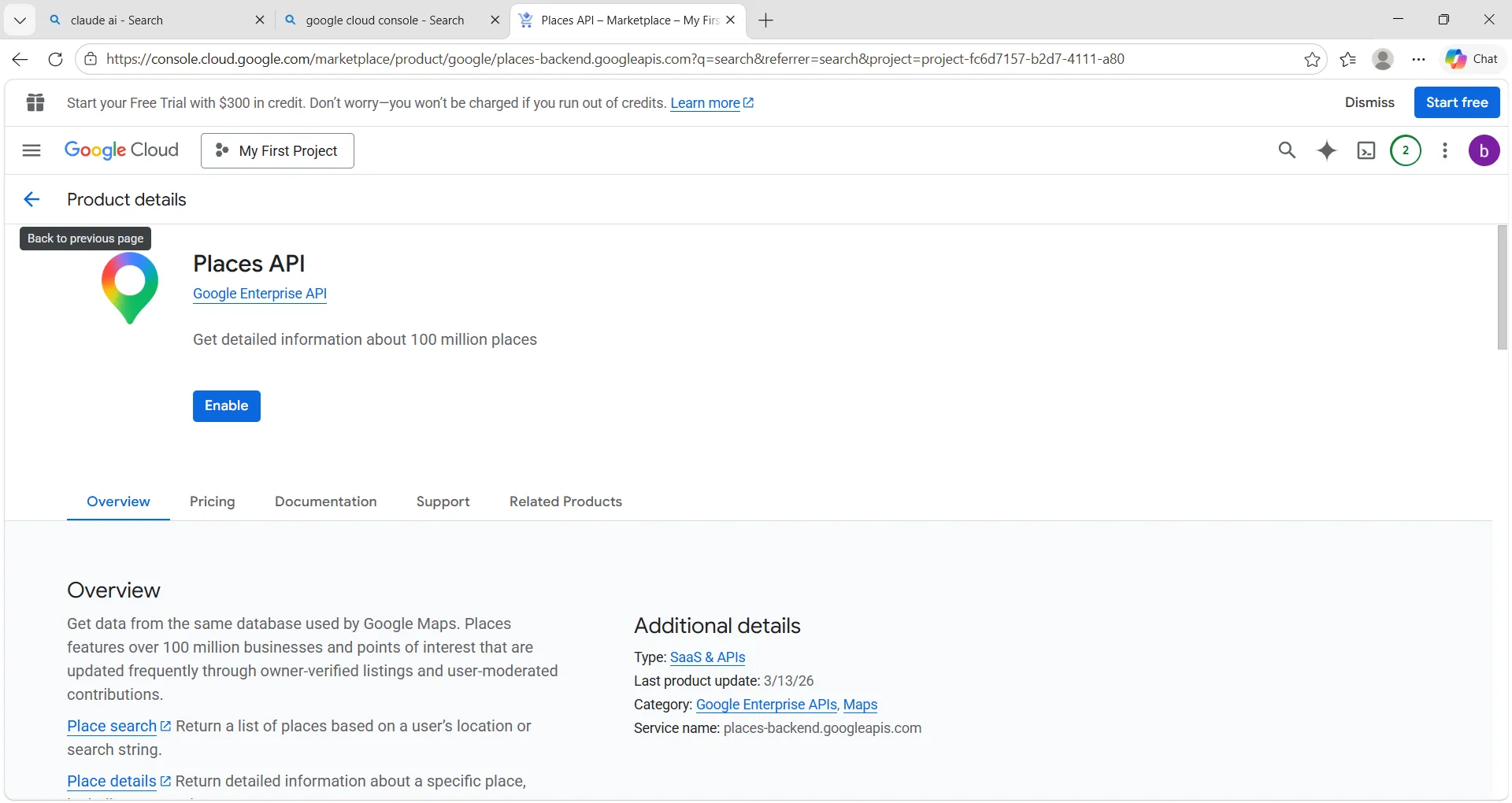
Enable the required API(s), such as:
-
Maps JavaScript API
-
Places API
-
Geocoding API
-
Maps SDK for Android
-
Maps SDK for iOS
-
-
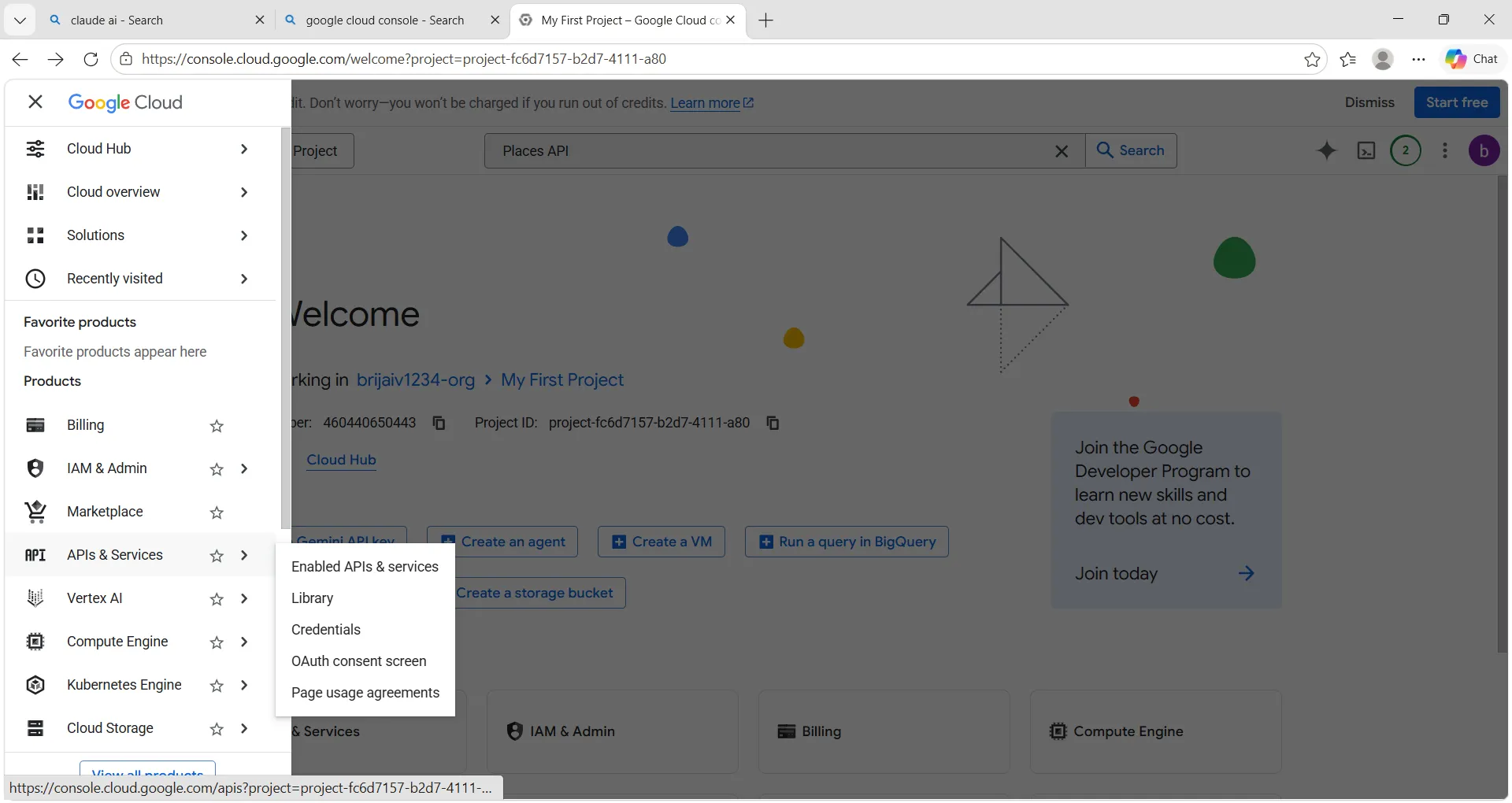
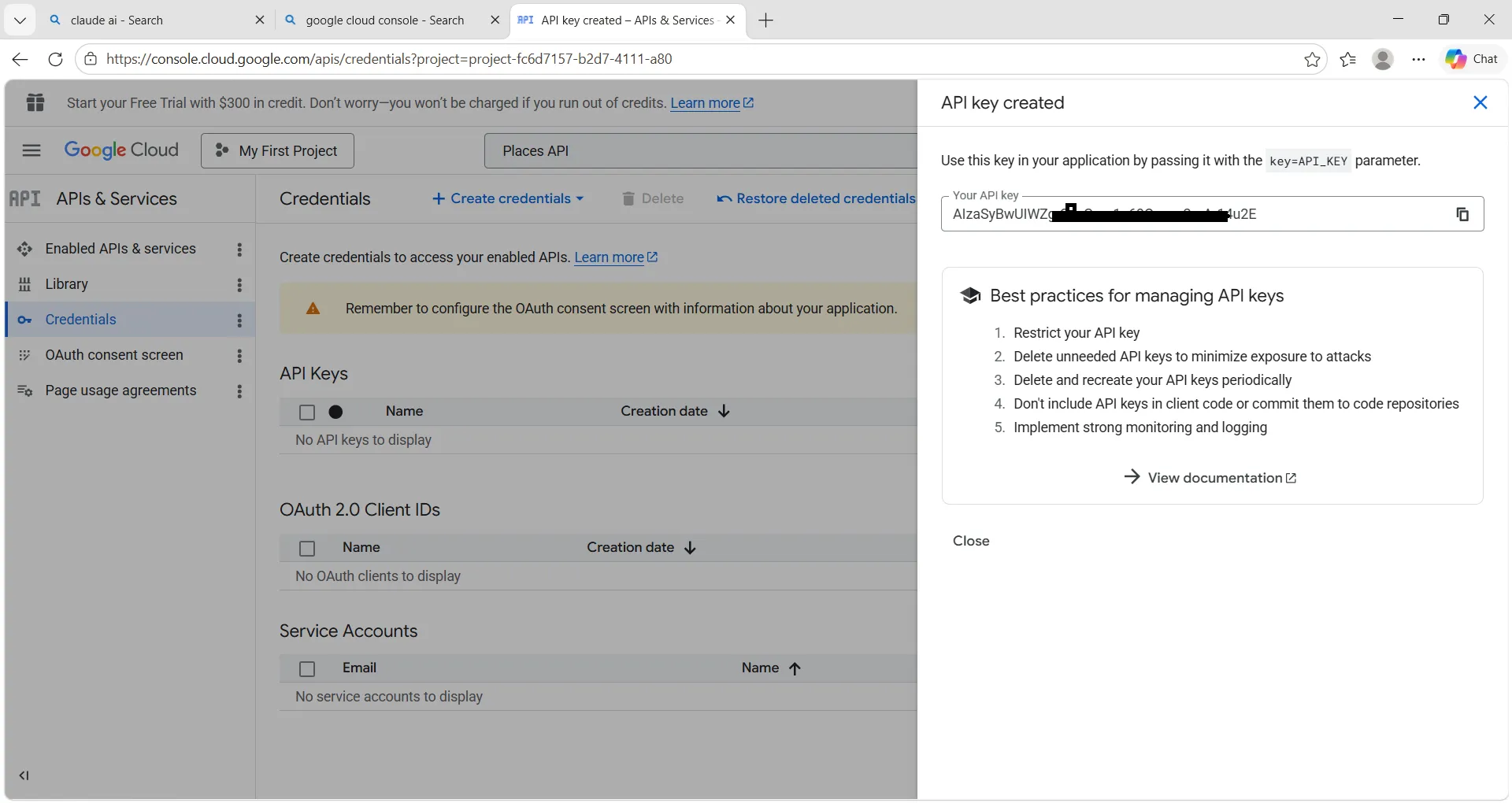
Go to APIs & Services > Credentials.
-
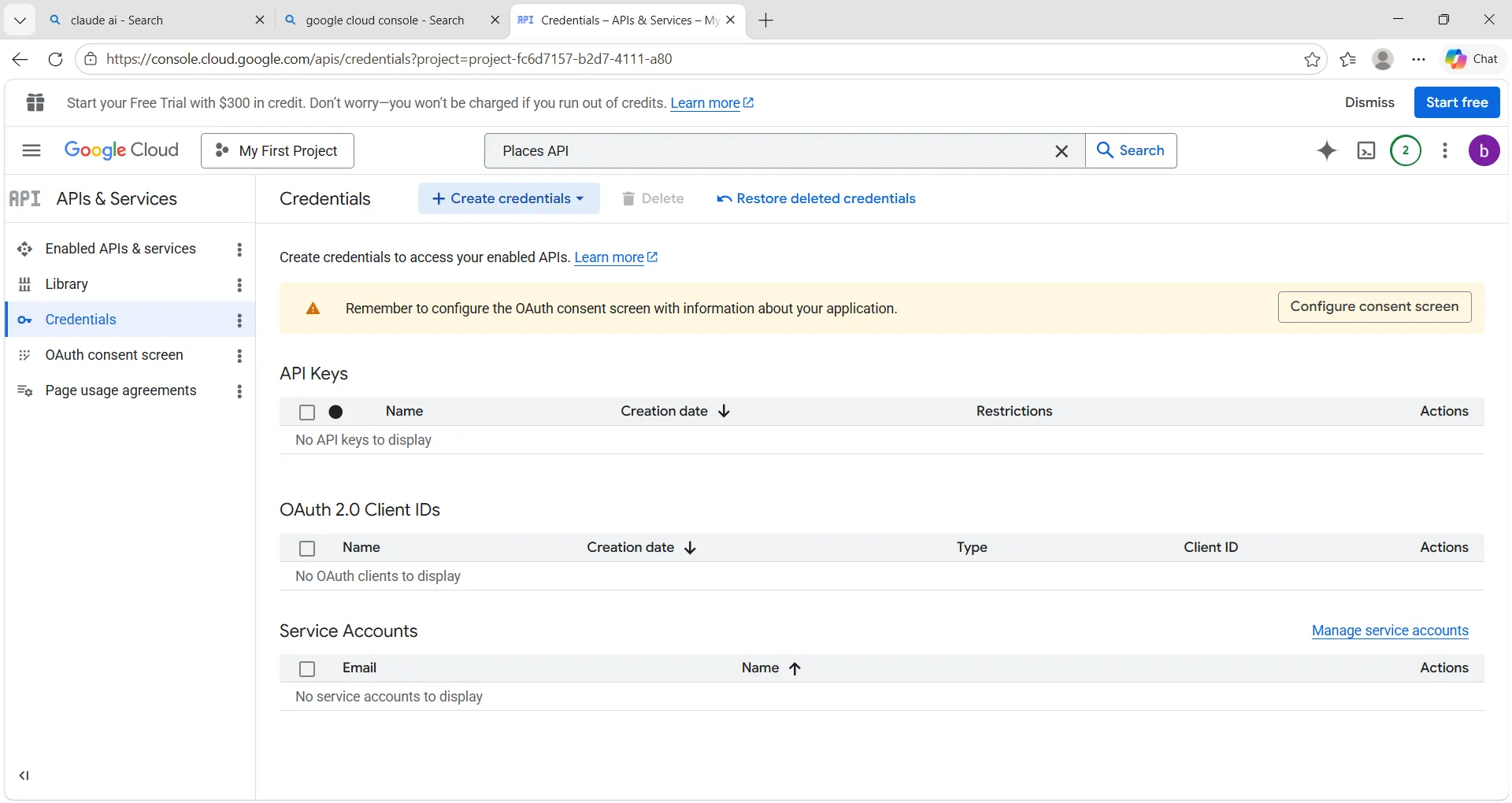
Click Create Credentials.
-
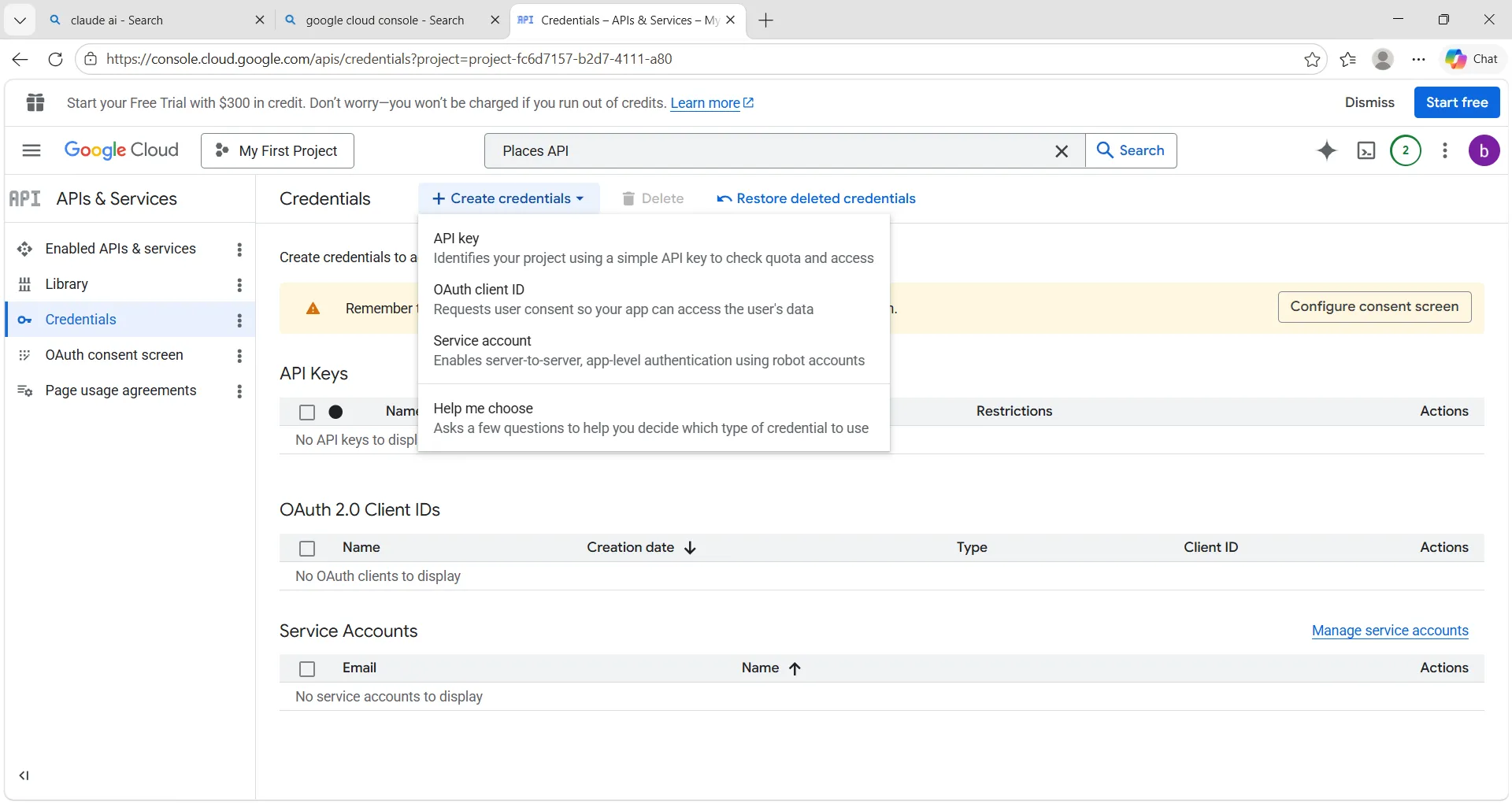
Select API Key.
-
Copy the generated API key.
-
Restrict the API key for security:
-
Application restrictions
-
HTTP referrers for websites
-
IP addresses for servers
-
Android apps
-
iOS apps
-
-
API restrictions
- Limit the key to only the APIs you need
-
-
Use the key in your application.
How to Add Google API Key in AIV
-
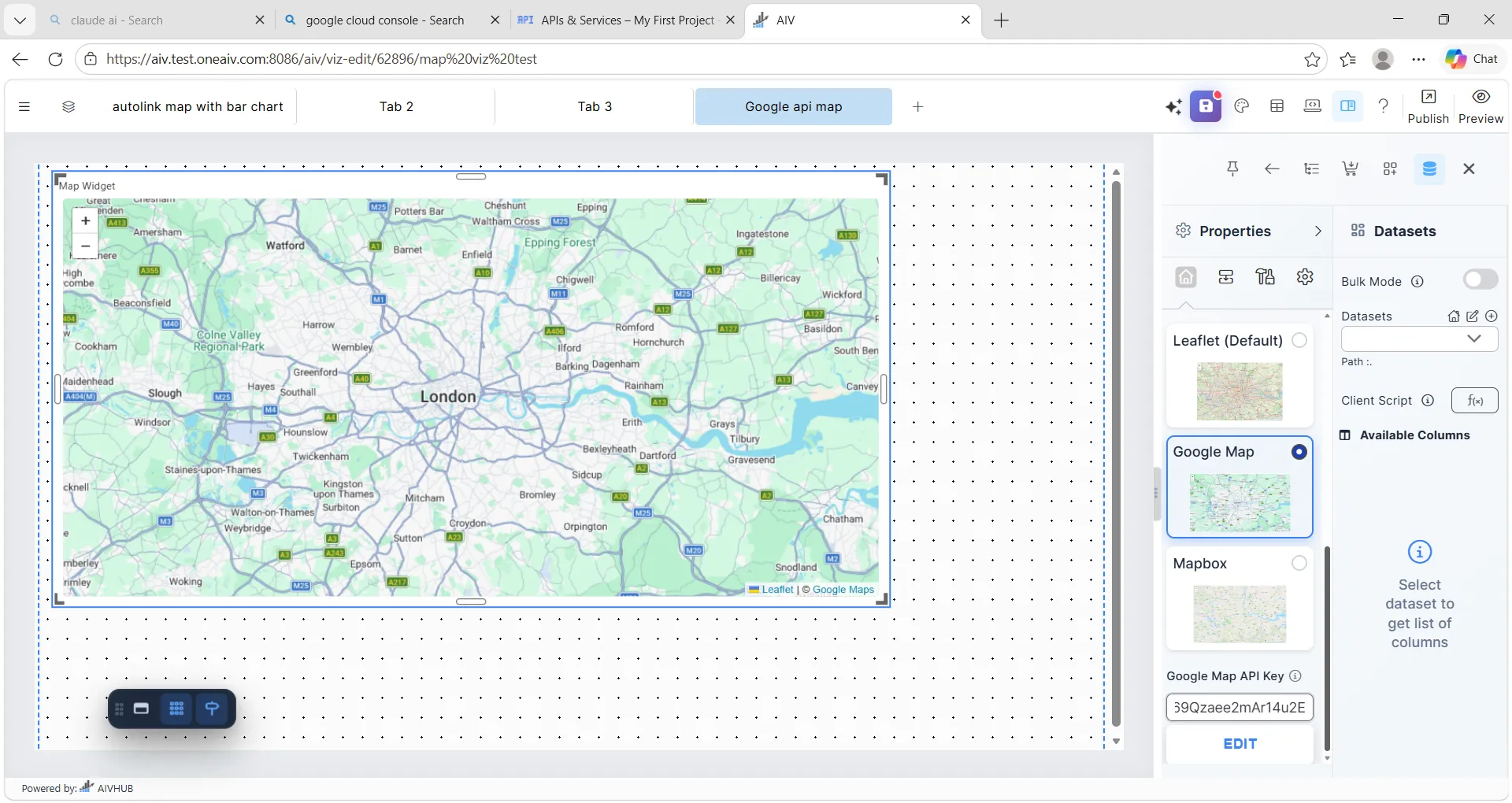
In Viz, add or edit a Map Widget on your canvas.
-
Select any map in the widget.
-
Scroll down to the Map Provider section.
-
In provider options, select Google API Key.
-
Paste your generated Google Maps API key in the Google API Key input field.
-
Save the widget settings.
Notes
-
Make sure billing is enabled.
-
Make sure the required API is enabled.
-
Always restrict your API key before using it in production.