Mapbox Access Token
How to Create a Mapbox Access Token
Official Mapbox Pages
Steps to Create a Mapbox Access Token
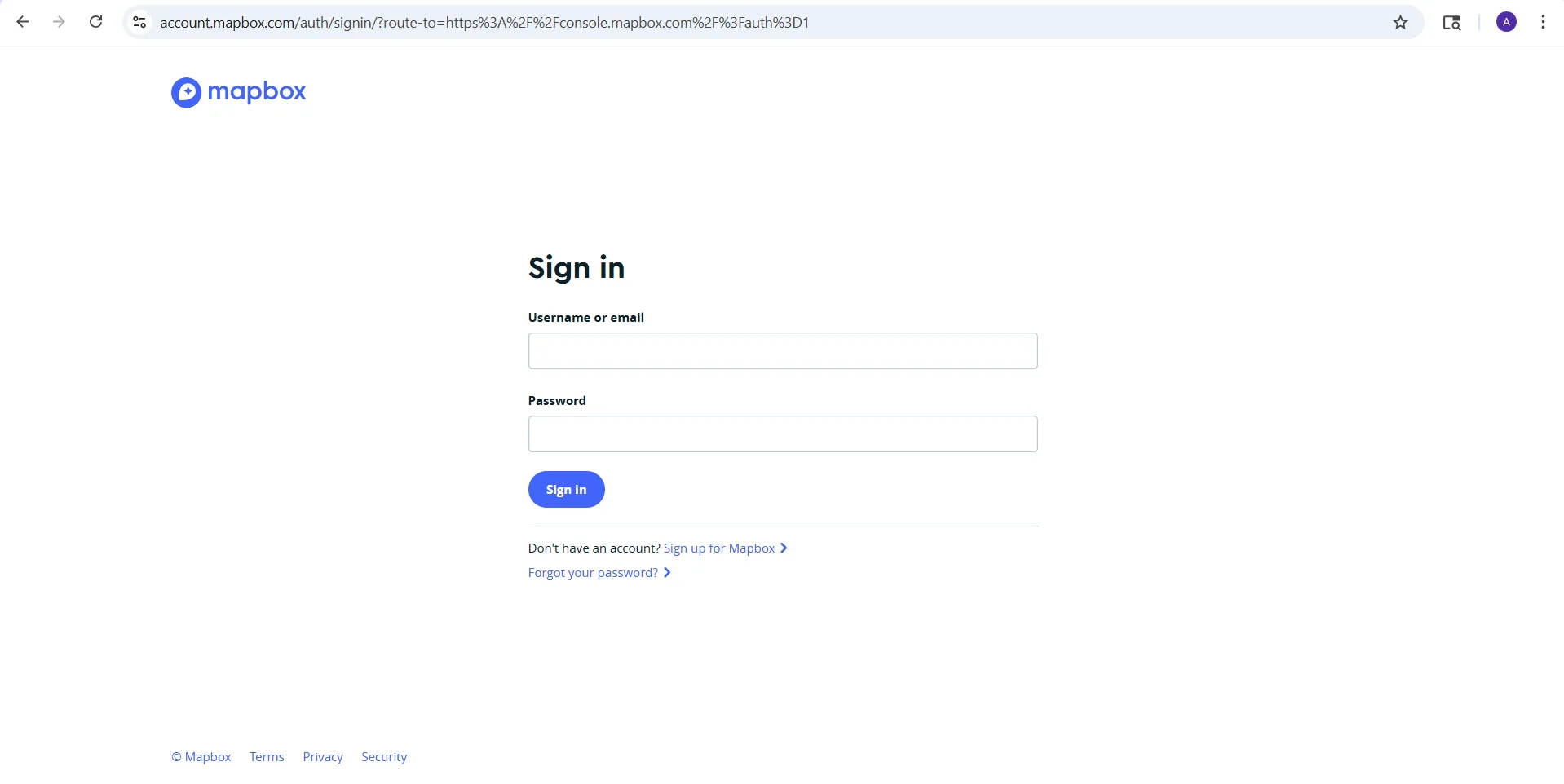
- Sign in to your Mapbox account.
-
Open your Access Tokens page in the Mapbox account dashboard.
-
You will already see a default public token available in your account.
-
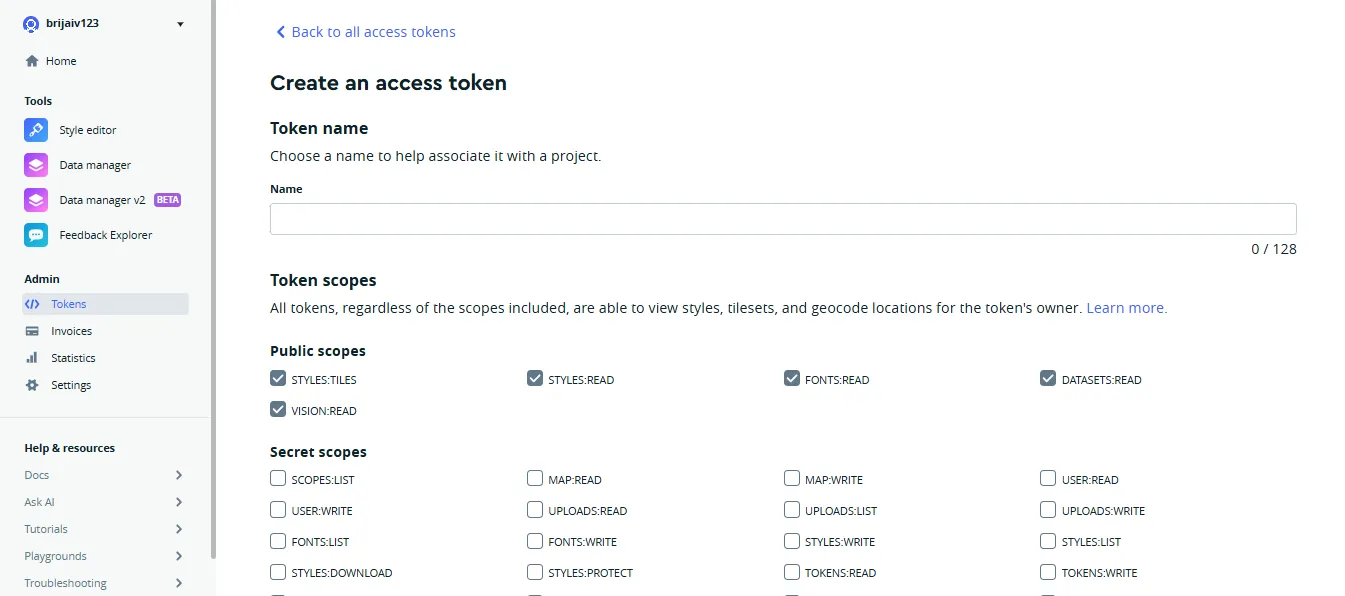
To create a new token, click Create a token.
-
Enter a name for the token so you can identify where it will be used.
-
Select the required scopes for the token.
-
For most frontend map applications, a public token is used.
-
Public tokens usually start with
pk. -
Secret tokens usually start with
skand should only be used on the server side.
-
-
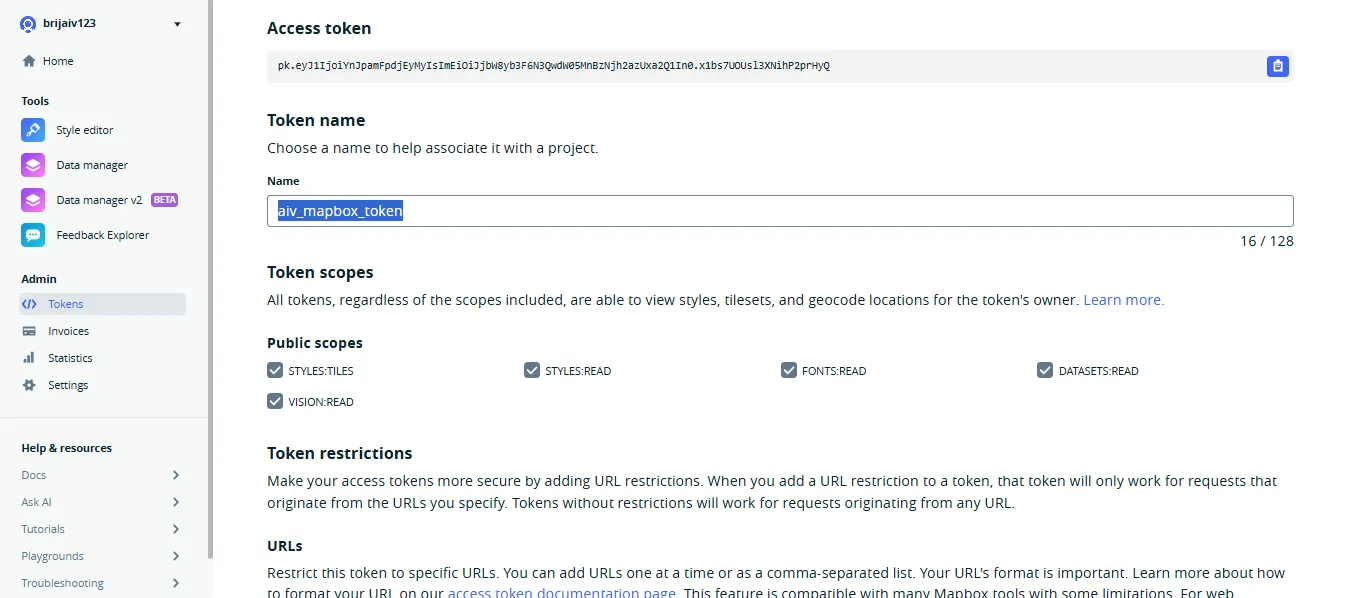
Save or create the token.
-
Copy the token and store it securely.
Token Types
-
Public token (
pk)Use this in websites, browser apps, and mobile apps.
-
Secret token (
sk)Use this only in backend or server-side applications.
-
Temporary token (
tk)Can be created programmatically for short-lived access through the Tokens API.
Important Recommendations
-
Create separate tokens for different environments such as:
-
local development
-
testing
-
production
-
-
Only enable the minimum scopes required.
-
Never expose a secret token in frontend code.
-
If a token is exposed publicly and you suspect misuse, rotate it by creating a new one and deleting the old one.
How to Add Mapbox Access Token in AIV
-
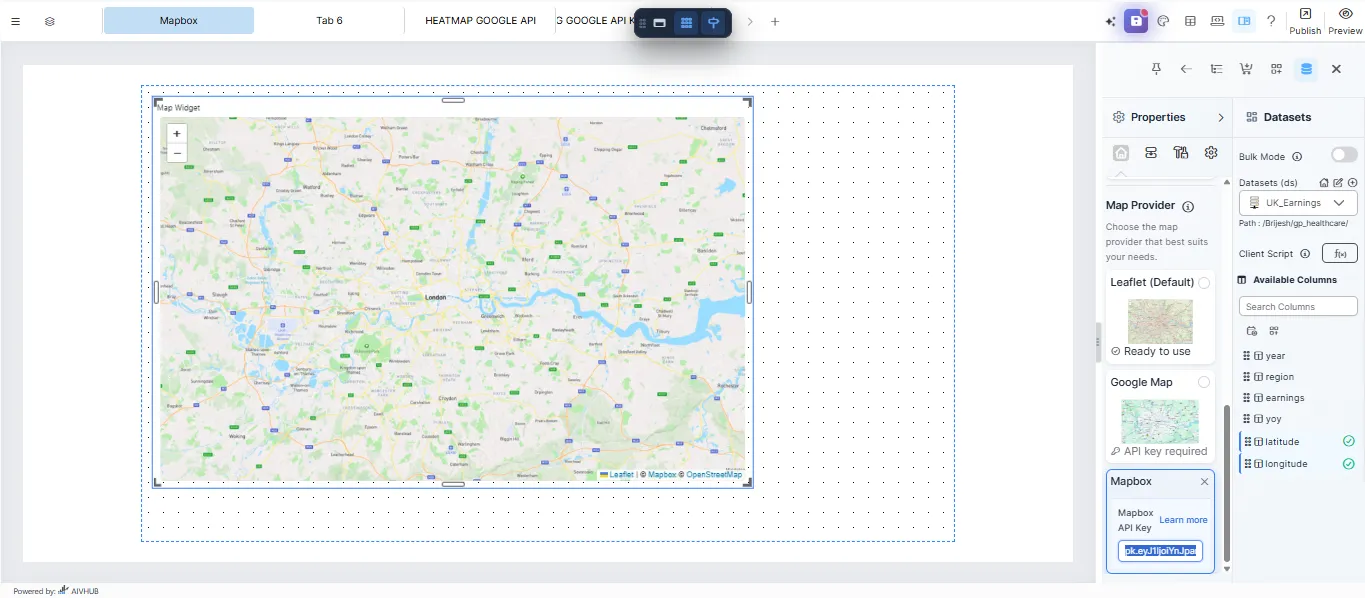
In Viz, add or edit a Map Widget on your canvas.
-
Select any map in the widget.
-
Scroll down to the Map Provider section.
-
In provider options, select Mapbox Access Token.
-
Paste your token in the Mapbox Access Token input field.
-
Save the widget settings.
Notes
-
Every request to Mapbox APIs requires an access token.
-
Your account includes a default public token by default.
-
For advanced automation, you can create and manage tokens using the Tokens API.