Delete Department
Deleting a department in AIV permanently removes the department and all its associated data, including users, reports, and configurations. This action should be performed with caution as it cannot be undone.
This guide walks you through the process of deleting a department in the application.
Video Tutorial
Steps to Delete a Department
Step 1: Access the Department Section
-
Click on the
 (hamburger menu) icon in the top-left corner of the screen.
 -
Navigate to Administration.
-
Under the Administration section, click on Department.
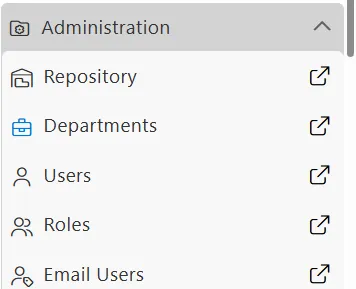
This will take you to the Department Page, where existing departments are displayed in a list view.
Step 2: Select the Department to Delete
There are two ways to select a department for deletion:
Method 1: Click on the department name to select it, then click the  button in the bottom toolbar.
Method 2: Right-click on the department name (e.g., “Employee”) and select Delete from the context menu.
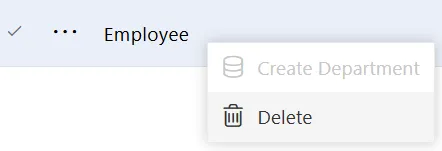
Step 3: Confirm the Deletion
After selecting Delete using one of the methods above, a confirmation dialog box will appear.
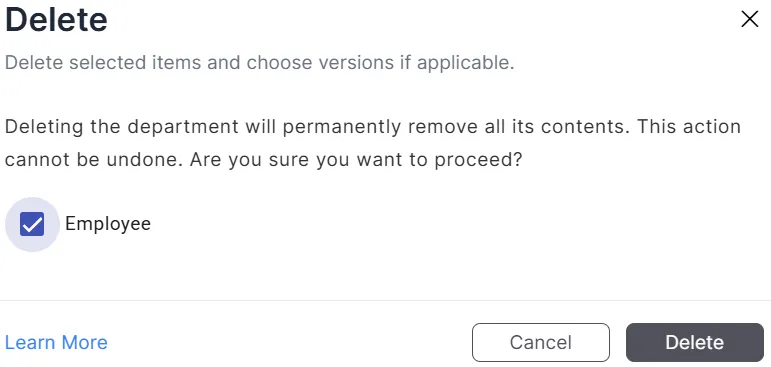
Click Delete to confirm the deletion or Cancel to abort the operation.
Important: Deleting a department is permanent and cannot be undone. All data associated with the department, including users, reports, and configurations, will be permanently removed.
Step 4: Verify the Deletion
Once confirmed, the department will be removed from the list. A success message will be displayed confirming the deletion.

Related Documentation
To learn more about department features, refer to the following guides: